
How to Tell AI the Basics About Your Business (Name, Type, Logo, Website)
The basics of your business, what kind of business it is, its name, its logo and its website, are not stated in the part of your site written for machines. Setting them once in Business Identity puts them on your pages as data.
In your report
Your site does not state the basics about your business
What this means
Every business has four basic facts: what kind of business it is, its name, its logo and its website address. People pick these up from your design at a glance. Machines need them written down as data.
Our check looks for all four in your structured data. This problem appears when one or more is missing. It shows on every report for a site that is not connected yet, because nothing has been written for machines at all.
Why it matters for AI
These are what an AI tool uses to tell you apart from every other business with a similar name. Without them it may describe the wrong company, or decide it cannot say anything for certain.
Everything else you add, such as contact details, topics and founders, is attached to this basic entry. It is the piece the rest depends on.
Fix it with AI Schema Gen
Every step below is in the AI Schema Gen dashboard, whatever your site is built with. For the fixes to reach your pages, your site needs to be connected first: connect your site.
- 1
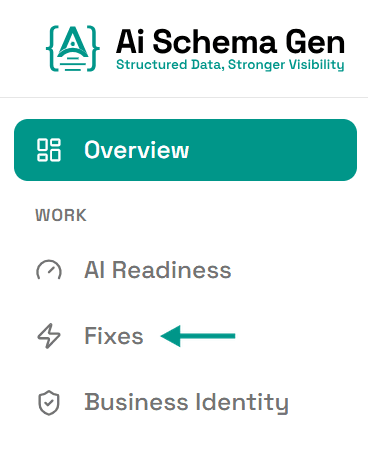
Open Fixes
In the menu on the left, click Fixes.
- 2
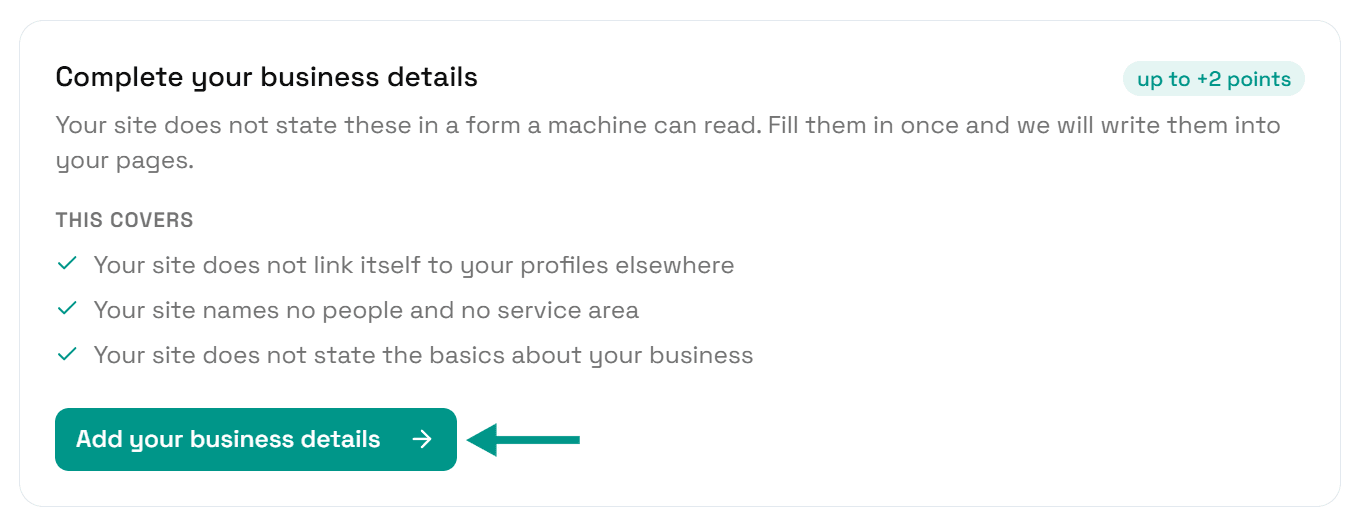
Click Add your business details
Find Complete your business details and click Add your business details.
- 3
Set your business type
At the top of Business Identity, find Business Type and click Edit (or Configure if it has never been set).
Under What is this site?, pick the closest match, add a Specific type if one fits, and save it.
- 4
Check your business name
At the top of the form, Business Name shows the name your pages state. Type the everyday name customers know you by, or correct it if it is wrong.
- 5
Add a description
In Description, write two or three plain sentences saying what you do and who for.
- 6
Add your logo
Under Organization Logo, click Upload Image and choose your logo, or paste a link to it into Logo URL.
- 7
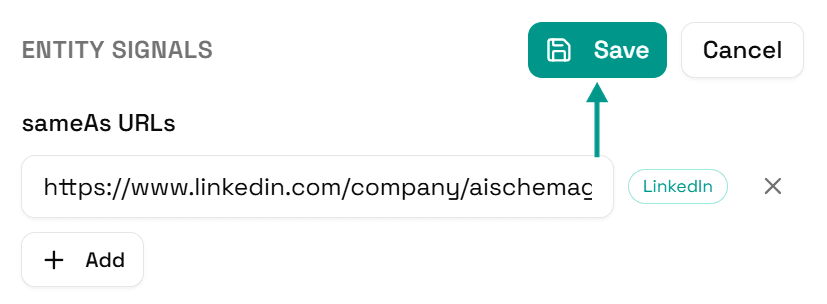
Click Save
Scroll back up and click Save.
- 8
Your pages update
You will see Saved. Your live pages are being updated now.
On a copy-and-paste site, go to Sites and click Get the new code instead.

- 9
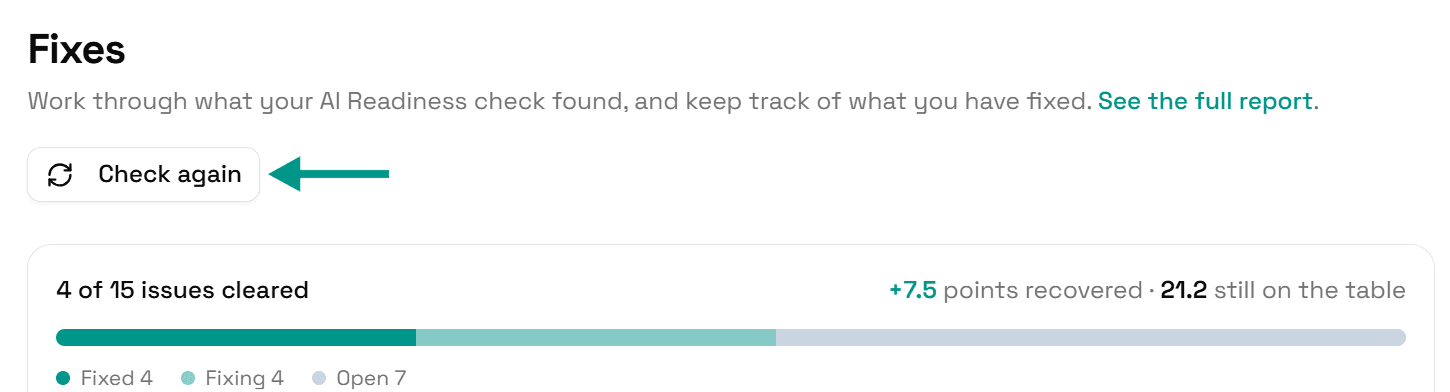
Check again
Go back to Fixes and click Check again. When your basics are on your pages, this problem moves to Resolved.
On WordPress
On WordPress the logo is set in the AI Schema Gen plugin, under its Organization Logo setting, and syncs to the dashboard by itself. Your business name comes from the Site Title in WordPress (Settings > General), so change it there. The rest can be edited in either place. Details saved in the dashboard reach the plugin when someone next opens your WordPress admin, or within 6 hours.
Check it worked
Run the free AI readiness check again once your change is live. This problem should be gone from the Understand part of the report.
FAQ
Related fixes
- How to Connect Your Website to AI Schema Gen (WordPress, Next.js, Wix, Shopify and More)
- How to Make Your Phone, Email and Address Readable by AI
- How to Add Your Legal Business Name and Founding Date for AI
- How to Link Your Website to Your Other Profiles for AI (sameAs Links)
- Why AI Can't Answer Basic Questions About Your Business, and How to Fix It
See what else your site needs
The free check lists every problem on your site in order of how much it costs you.
Check your site free