
How to Link Your Website to Your Other Profiles for AI (sameAs Links)
Your site does not tell machines which profiles and listings elsewhere are yours: your LinkedIn page, your Google Business Profile, your directory listings. Adding those links is the strongest single way to show who you are.
In your report
Your site does not link itself to your profiles elsewhere
What this means
Your business probably exists in several places online besides your website. Structured data has a property for saying "these are all the same business", called sameAs: a list of links to your own profiles and listings.
Our check looks for that list. This problem appears when it is missing or short. Up to five links count.
Why it matters for AI
An AI tool has usually seen your business somewhere before it reads your website: a directory, a social profile, a review site. These links are how it confirms the business on your site is the same one, and joins up everything it knows.
Without them, your website and your profiles can look like separate businesses that happen to share a name.
Fix it with AI Schema Gen
Every step below is in the AI Schema Gen dashboard, whatever your site is built with. For the fixes to reach your pages, your site needs to be connected first: connect your site.
- 1
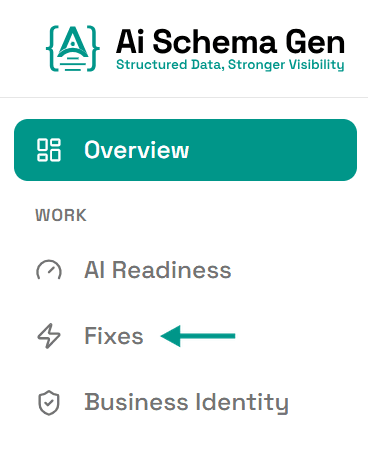
Open Fixes
In the menu on the left, click Fixes.
- 2
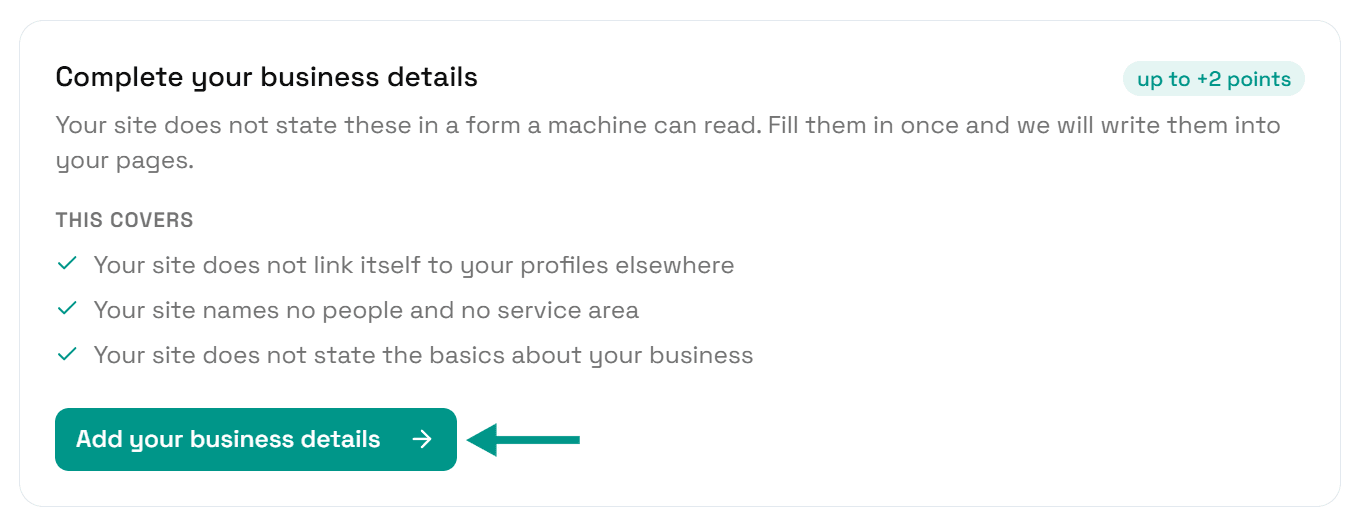
Click Add your business details
Find Complete your business details and click Add your business details.
- 3
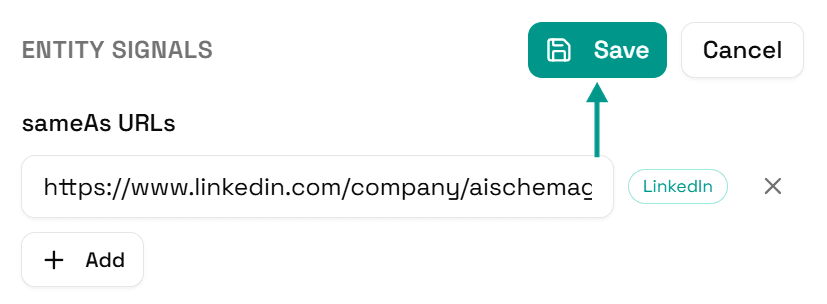
Add your profile links
Under sameAs URLs, click Add and paste the full link to one of your profiles. Repeat for each one.
Add up to five, starting with the best known: your Google Business Profile, LinkedIn company page, Facebook page, and the main directory or review site for your trade.
- 4
Only add profiles that are really yours
Each link must open a page about your business, not a search page, not your homepage and not a profile you no longer use.
- 5
Click Save
Scroll back up and click Save.
- 6
Your pages update
You will see Saved. Your live pages are being updated now.
On a copy-and-paste site, go to Sites and click Get the new code instead.

- 7
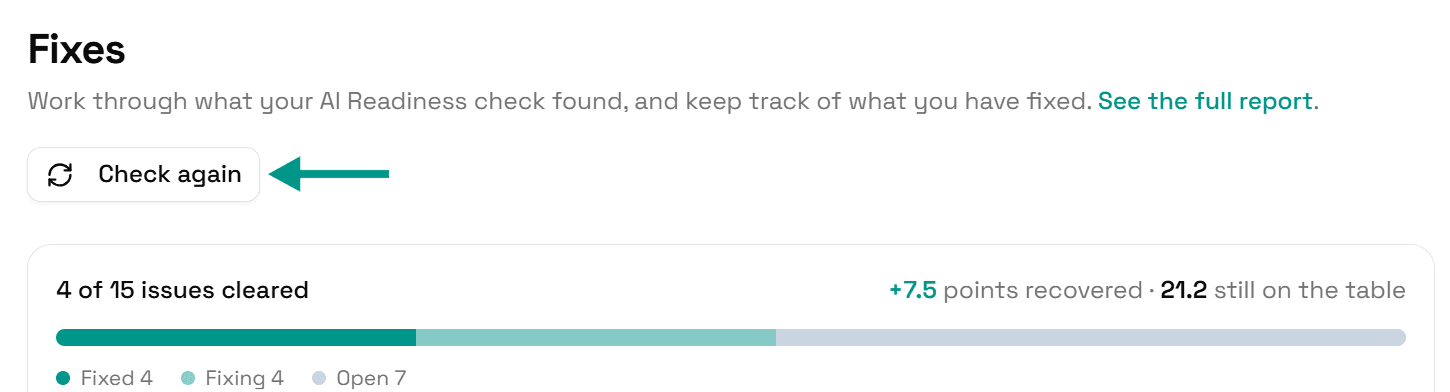
Check again
Go back to Fixes and click Check again. When your links are on your pages, this problem moves to Resolved.
On WordPress
These details can be edited in the dashboard or in the AI Schema Gen plugin: they sync both ways. Details saved in the dashboard reach the plugin when someone next opens your WordPress admin, or within 6 hours. If saving says the plugin has not picked them up yet, open your WordPress admin once, come back, and click Try again.
Check it worked
Run the free AI readiness check again once your change is live. This problem should be gone from the Understand part of the report.
FAQ
Related fixes
- How to Connect Your Website to AI Schema Gen (WordPress, Next.js, Wix, Shopify and More)
- How to Tell AI the Basics About Your Business (Name, Type, Logo, Website)
- How to Fix Inconsistent Business Name, Phone or Address Across Your Website
- How to Tell AI What Your Business Knows About (knowsAbout Topics)
See what else your site needs
The free check lists every problem on your site in order of how much it costs you.
Check your site free