
How to Add Your Legal Business Name and Founding Date for AI
Your site does not state the registered name of your business or the date it was founded, in a form machines can read. Both take a minute to add in Business Identity.
In your report
Your legal business details are missing
What this means
Most businesses have two names: the one on the sign, and the registered one on official paperwork, such as "Acme Plumbing" and "Acme Plumbing Services Ltd". They also have a date they started.
Our check looks for both the legal name and the founding date in your structured data. This problem appears when either is missing. Nearly every site we check is missing them.
Why it matters for AI
A registered name and a founding date are what separate a real, established business from a page that only claims to be one. They are also what official records and business directories list, so they help machines match your site to those records.
"How long have they been going?" is a question people really do ask an AI assistant before choosing a business.
Fix it with AI Schema Gen
Every step below is in the AI Schema Gen dashboard, whatever your site is built with. For the fixes to reach your pages, your site needs to be connected first: connect your site.
- 1
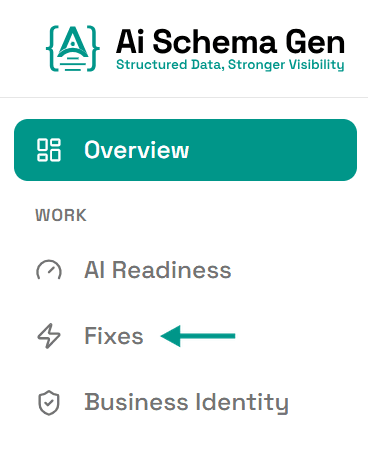
Open Fixes
In the menu on the left, click Fixes.
- 2
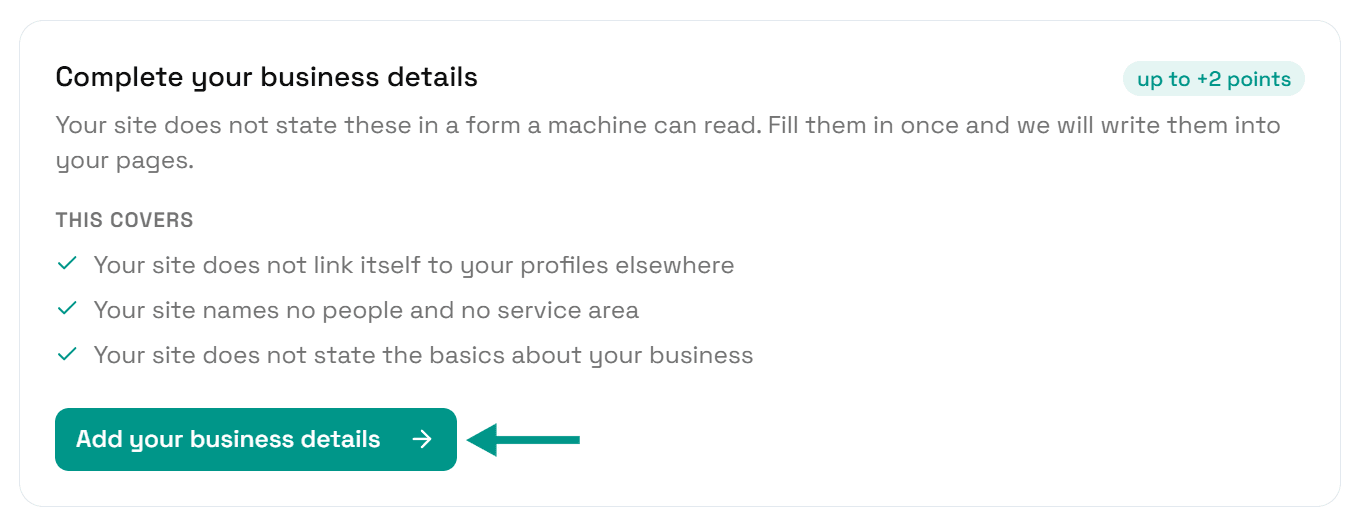
Click Add your business details
Find Complete your business details and click Add your business details.
- 3
Fill in Legal Name and Founding Date
In Legal Name, type the registered name of your business exactly as it appears on official paperwork.
In Founding Date, enter the date the business started. If you only know the year, use the first of January of that year.
- 4
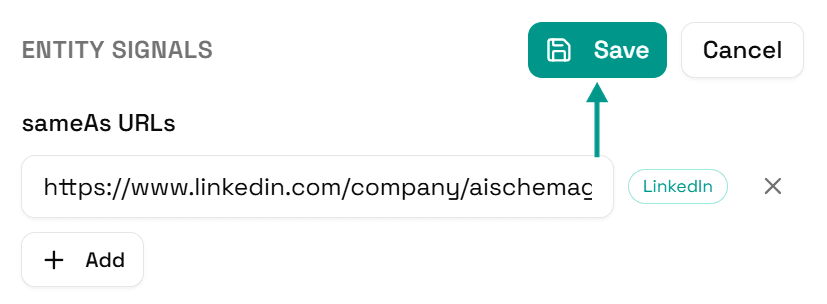
Click Save
Scroll back up and click Save.
- 5
Your pages update
You will see Saved. Your live pages are being updated now.
On a copy-and-paste site, go to Sites and click Get the new code instead.

- 6
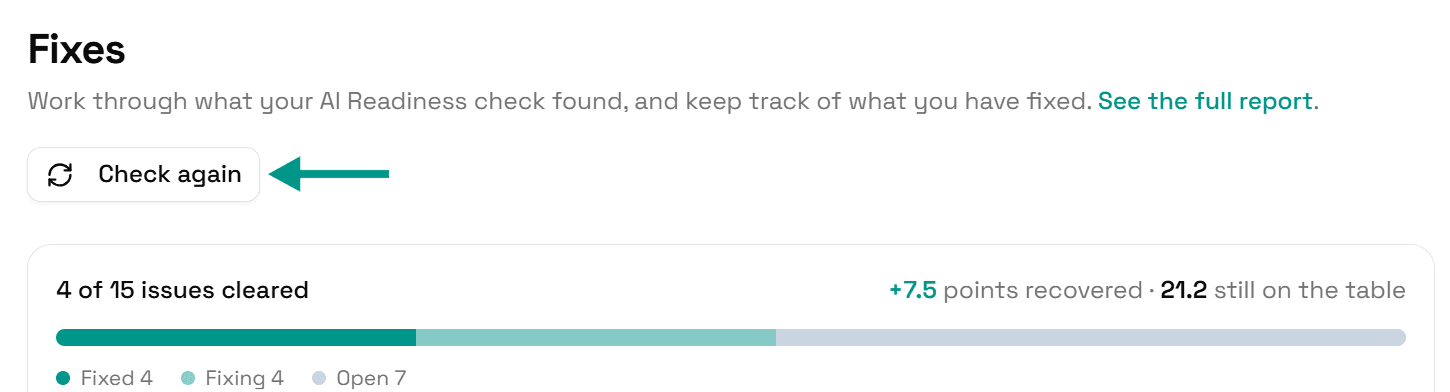
Check again
Go back to Fixes and click Check again. When both are on your pages, this problem moves to Resolved.
On WordPress
These details can be edited in the dashboard or in the AI Schema Gen plugin: they sync both ways. Details saved in the dashboard reach the plugin when someone next opens your WordPress admin, or within 6 hours. If saving says the plugin has not picked them up yet, open your WordPress admin once, come back, and click Try again.
Check it worked
Run the free AI readiness check again once your change is live. This problem should be gone from the Understand part of the report.
FAQ
See what else your site needs
The free check lists every problem on your site in order of how much it costs you.
Check your site free