
Why Schema Added by Google Tag Manager May Be Invisible to AI
Your structured data is not in the page a crawler downloads. A script, usually a tag manager, adds it afterwards. Anything that reads the page without running scripts sees none of it. Markup delivered by AI Schema Gen is in the page itself.
In your report
Your structured data only appears after JavaScript runs
What this means
Our check downloads each page twice: once without running scripts, and once in a real browser. This problem counts the pages where structured data showed up only the second time.
It is reported, not scored. How much it costs depends on which crawler is reading, so we do not put a number on it.
Why it matters for AI
Many AI crawlers read the raw page and never run its scripts. To them, a page whose markup is added by a script has no markup at all.
Serving the markup in the page itself removes the doubt: every reader sees it, whatever it does or does not run.
Fix it with AI Schema Gen
Every step below is in the AI Schema Gen dashboard, whatever your site is built with. For the fixes to reach your pages, your site needs to be connected first: connect your site.
- 1
Connect your site
Markup from AI Schema Gen is delivered inside the page by our WordPress plugin or our Next.js package, so it is there before any script runs. If your site is not connected yet, follow connect your site.
- 2
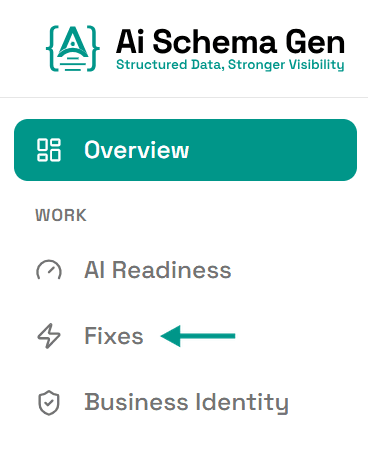
Open Fixes
In the menu on the left, click Fixes.
- 3
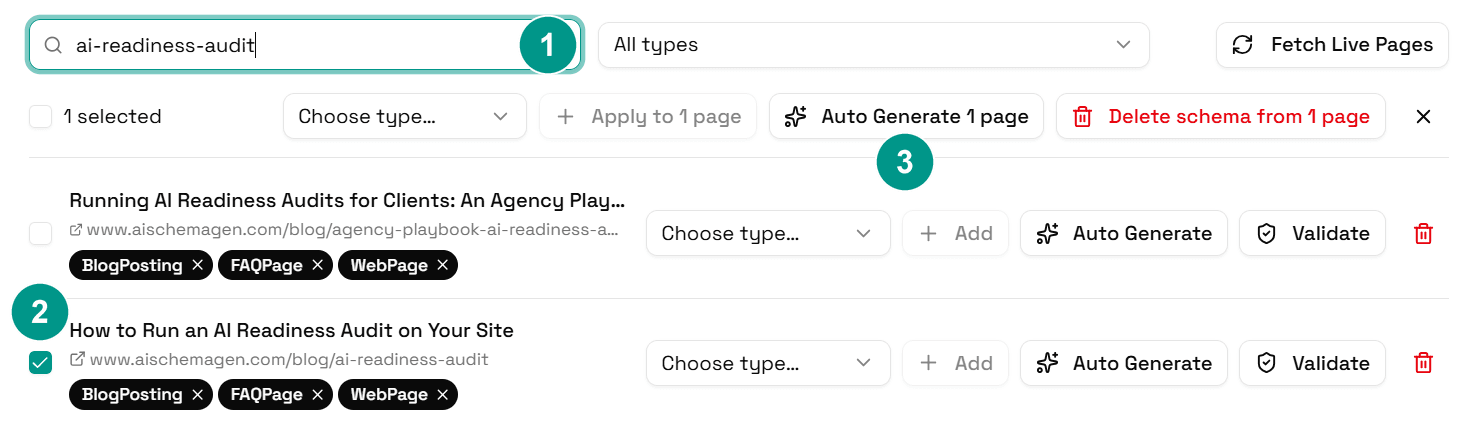
Open Schema Manager and generate the pages
In the menu on the left, click Schema Manager. Tick the pages named on the card, then click Auto Generate with the number of pages you ticked.
We work out the right markup for each page and our plugin or package serves it inside the page.
- 4
Take the old markup out of your tag manager
The markup your script adds is not something we can change from the dashboard. Once ours is live, have whoever manages your tag manager remove the old one, so the two do not describe your business twice.
- 5
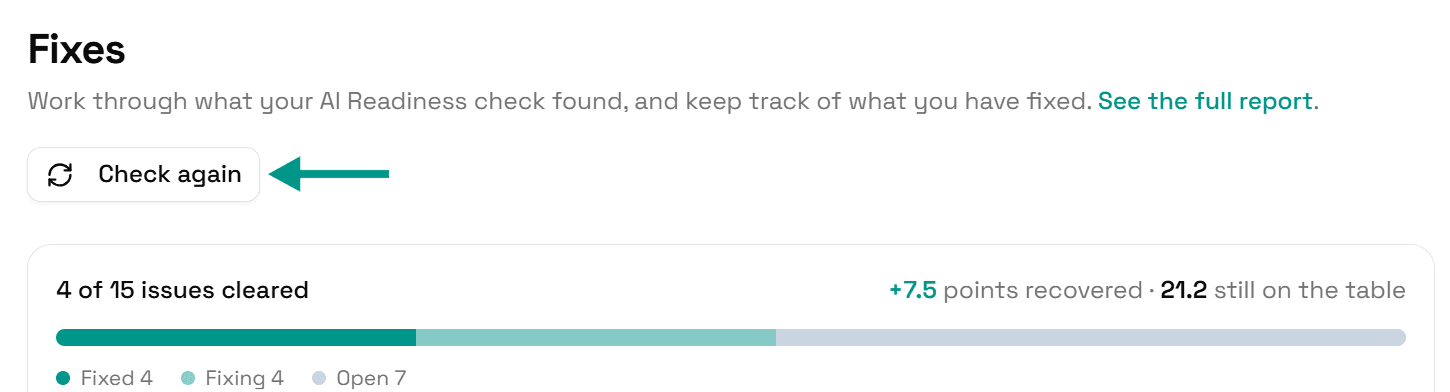
Check again
Go back to Fixes and click Check again. When the markup is in the page itself, this problem moves to Resolved.
Check it worked
Run the free AI readiness check again once the job has finished. This note should be gone from the Discover part of the report.
FAQ
See what else your site needs
The free check lists every problem on your site in order of how much it costs you.
Check your site free