
How to Fix Inconsistent Business Name, Phone or Address Across Your Website
Different pages of your site state your business name, phone number, address or website address in different ways. A machine cannot tell which is current. Saving one version in Business Identity puts the same details on every page.
In your report
Your business name, phone, address or website is given different ways
What this means
Our check compares what your structured data says about your business on every page. This problem appears when the pages disagree: two phone numbers, two spellings of the name, an old address on some pages and a new one on others.
Small differences in how something is written, such as spaces in a phone number, are not counted. Only real differences are.
Why it matters for AI
These all describe one business, so a machine has no way to tell which version is right. Most will state none of them, to avoid stating the wrong one.
A business name that differs between pages is the most serious, because it can make one business look like several.
Fix it with AI Schema Gen
Every step below is in the AI Schema Gen dashboard, whatever your site is built with. For the fixes to reach your pages, your site needs to be connected first: connect your site.
- 1
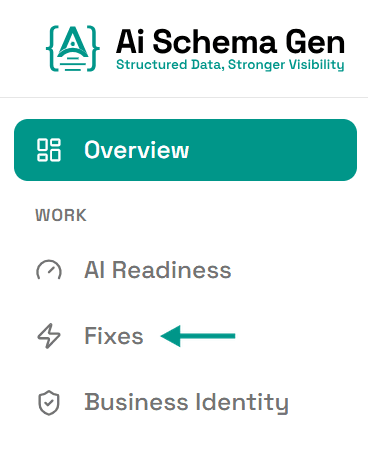
Open Fixes
In the menu on the left, click Fixes.
- 2
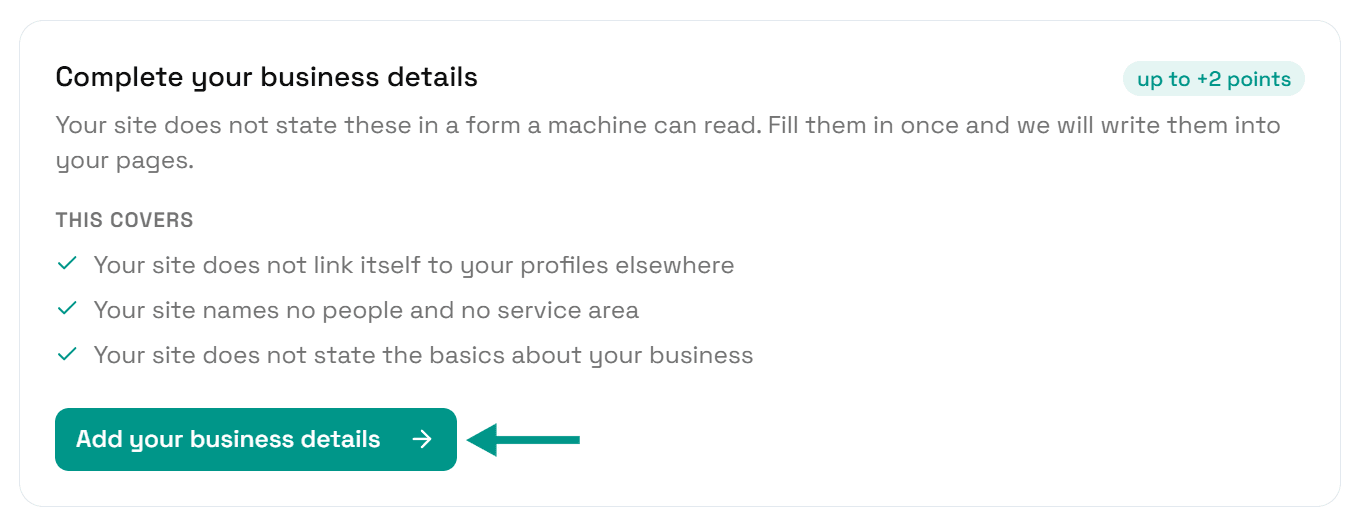
Click Add your business details
Find Complete your business details and click Add your business details.
- 3
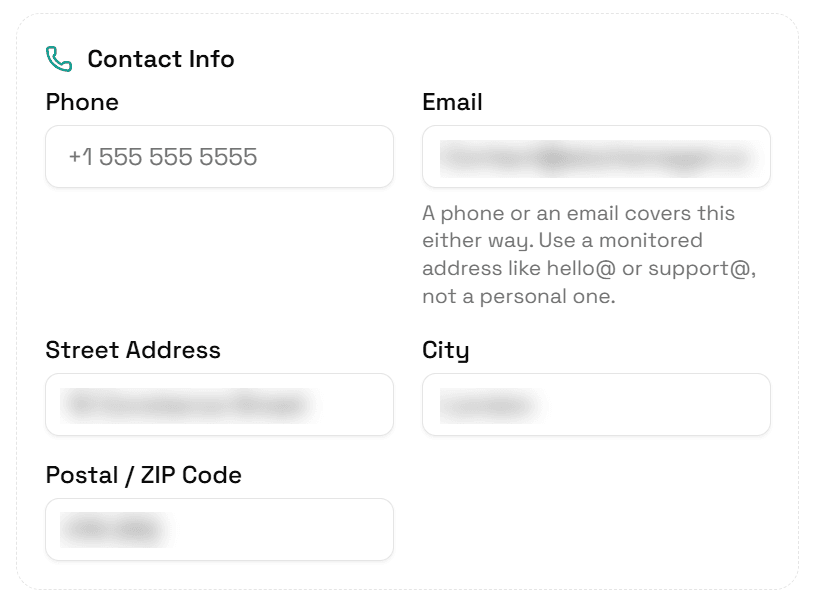
Enter the one correct version
In Business Identity, check Business Name at the top, then Phone, Email, Street Address, City and Postal / ZIP Code under Contact Info. Correct anything that is out of date.
This is the version every page will use.
- 4
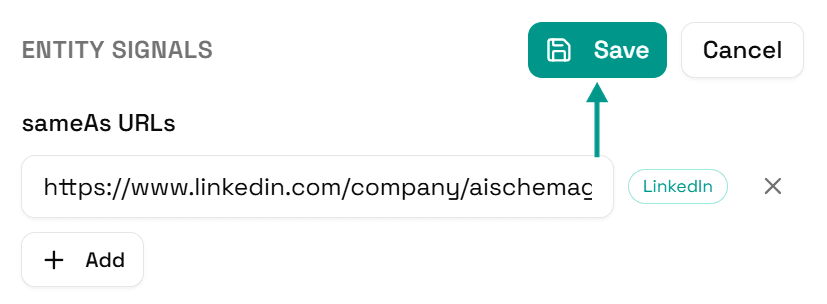
Click Save
Scroll back up and click Save.
- 5
Your pages update
You will see Saved. Your live pages are being updated now.
On a copy-and-paste site, go to Sites and click Get the new code instead.

- 6
Rebuild the pages that still disagree
If the card is still there after Check again, open Schema Manager, tick the pages listed on the card and click Auto Generate. That rewrites their markup with the details you just saved.
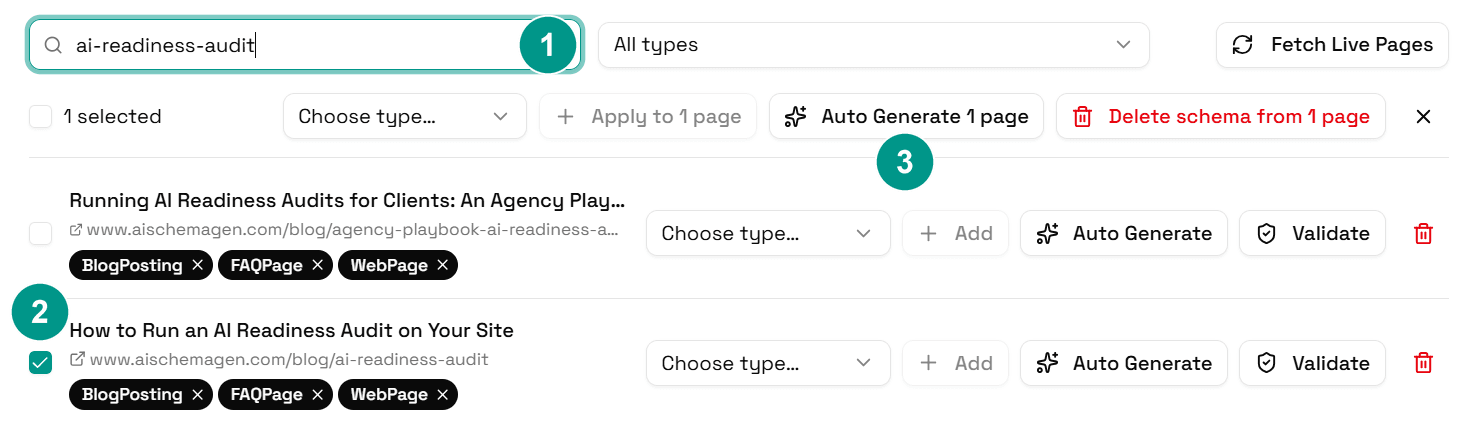
- 7
Check again
Go back to Fixes and click Check again. When every page states the same details, this problem moves to Resolved.
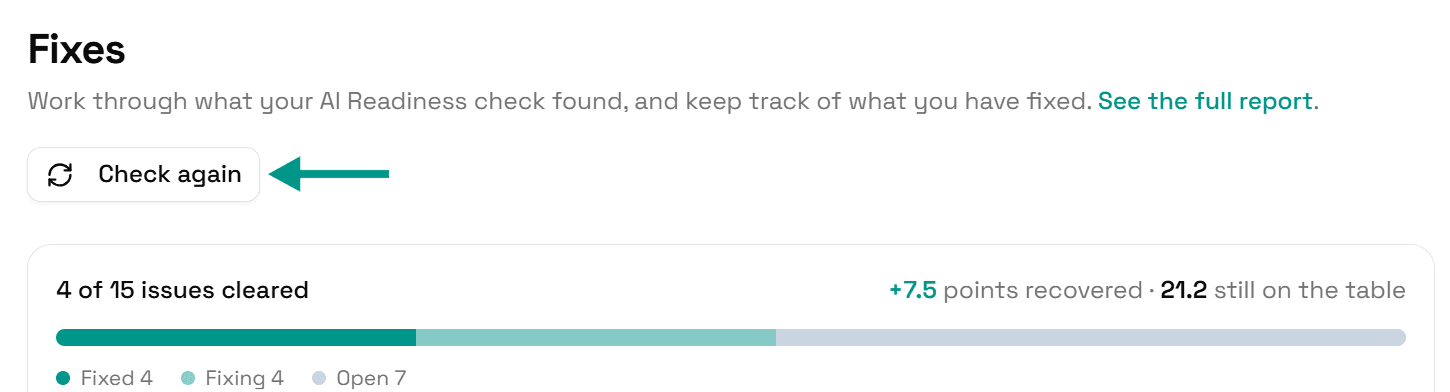
On WordPress
Our plugin replaces the markup AI Schema Gen puts on your pages, and takes out the parts of Yoast SEO or Rank Math markup that overlap with ours. Markup added by any other plugin, by your theme or by hand is not something we can change from the dashboard. If the problem is still listed after you generate, one of those is the likely source.
Check it worked
Run the free AI readiness check again once your change is live. This problem should be gone from the Understand part of the report.
FAQ
See what else your site needs
The free check lists every problem on your site in order of how much it costs you.
Check your site free