
How Broken Pages Hurt Your AI Visibility (Pages That Will Not Load)
Some of your pages gave an error or took too long when our check tried to open them. An AI tool that hits the same error has nothing to read, and broken pages are something only your website can put right.
In your report
Pages could not be loaded
What this means
Our check opens your pages the way an AI crawler does. This problem counts the ones that did not open: pages that said not found, pages where the server reported an error, and pages that never answered in time.
When the report says the pages came from your own sitemap, it means your site is actively handing crawlers a list that includes pages which are broken or gone.
Why it matters for AI
A page that will not load gives an AI tool nothing to read, however good the page is when it works.
Crawlers also give each site a limited amount of attention. Time spent on dead pages is time not spent on your real ones, and repeated failures make a crawler come back less often.
Fix it with AI Schema Gen
Every step below is in the AI Schema Gen dashboard, whatever your site is built with. For the fixes to reach your pages, your site needs to be connected first: connect your site.
- 1
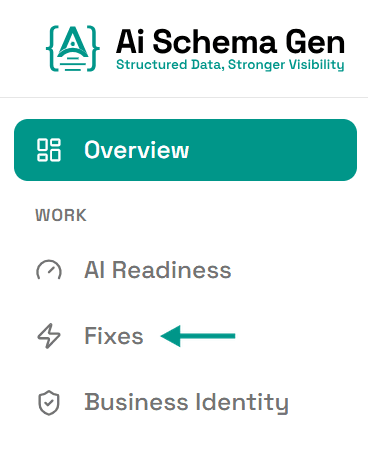
Open Fixes
In the menu on the left, click Fixes.
- 2
Find the card under Discover
Scroll down to Discover. The card ending could not be loaded shows how many pages failed out of how many we tried.
- 3
Repair or remove the broken pages
This is a change on your side. Each broken page needs to be brought back, pointed at its replacement, or taken out of your sitemap and your links. That is done in your website builder or by whoever looks after your site.
AI Schema Gen cannot make this change from the dashboard: it works on the structured data of your pages, not on the pages themselves.
- 4
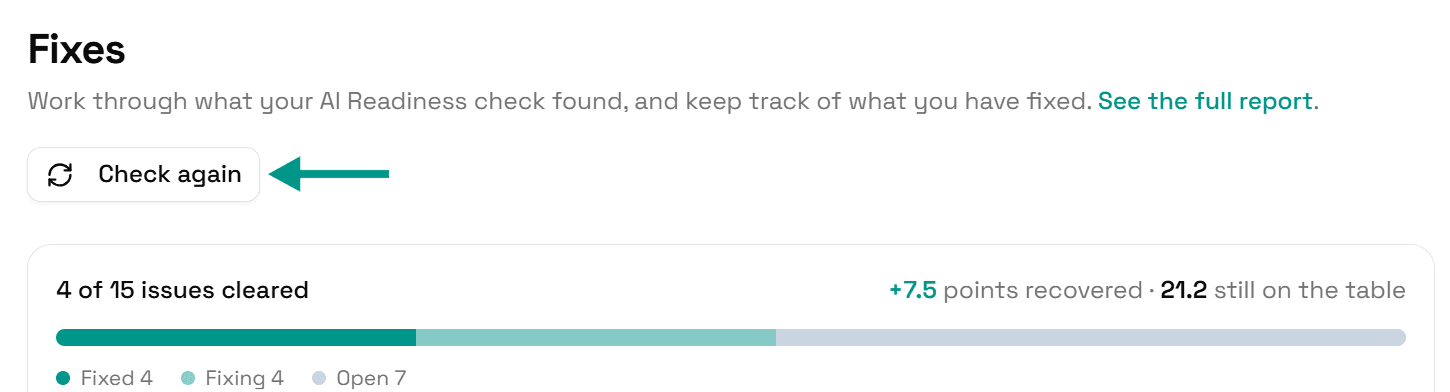
Check again
Go back to Fixes and click Check again. When every page loads, this problem moves to Resolved.
Check it worked
Run the free AI readiness check again once your change is live. This problem should be gone from the Discover part of the report.
FAQ
See what else your site needs
The free check lists every problem on your site in order of how much it costs you.
Check your site free