
Why Breadcrumb and WebPage Schema Alone Is Not Enough for AI
Some of your pages have structured data, but only the kind that describes the page itself, such as the breadcrumb trail. Nothing on them says who you are or what you offer. Adding your business details fills that in.
In your report
Pages describe only the page furniture, not the business
What this means
Some structured data is page furniture: the breadcrumb trail, the name of the website, the fact that this is a web page. Many themes and plugins add it by themselves.
This problem means that on some pages the furniture is all there is. Nothing describes a business, a person, a product, an article or anything else the page is actually about. These pages earn part of the credit, not all of it.
Why it matters for AI
Page furniture helps a crawler find its way around. It does not answer a single question about you: who runs this site, what it sells, where it is.
An AI tool reading these pages still has only your wording to go on for everything that matters.
Fix it with AI Schema Gen
Every step below is in the AI Schema Gen dashboard, whatever your site is built with. For the fixes to reach your pages, your site needs to be connected first: connect your site.
- 1
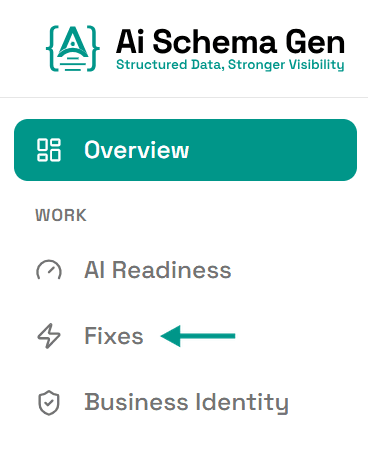
Open Fixes
In the menu on the left, click Fixes.
- 2
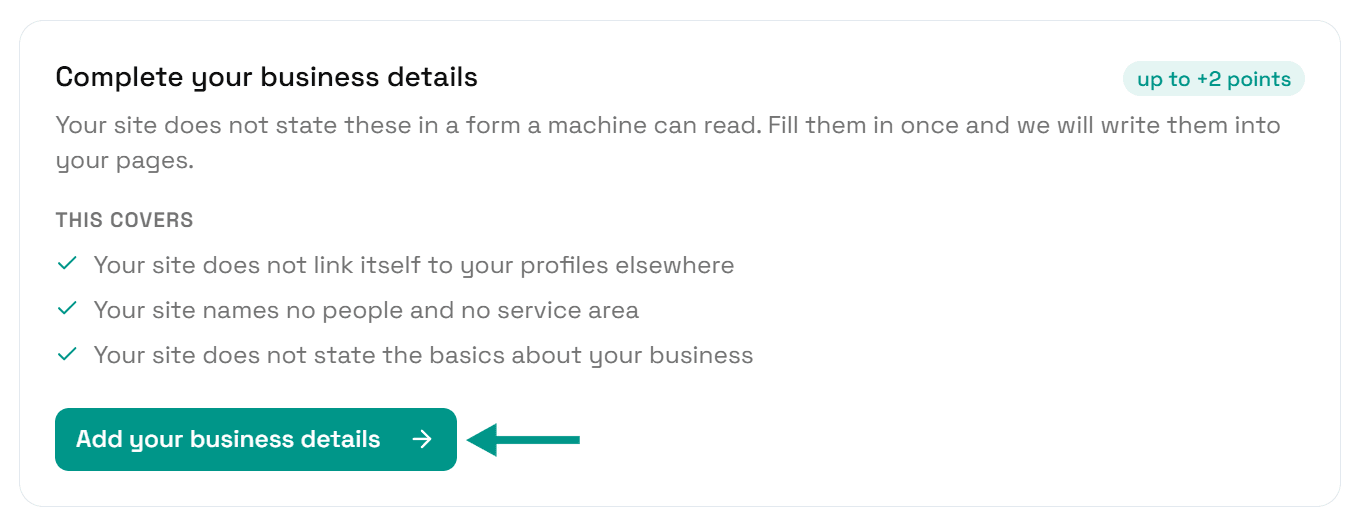
Click Add your business details
Find Complete your business details and click Add your business details.
- 3
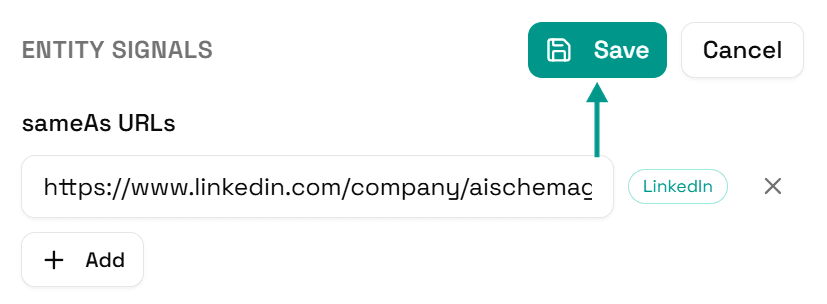
Fill in the form and click Save
Fill in Business Identity: your business type, description, contact details and the rest. Then click Save.
This is what puts a real description of your business on your pages, next to the page furniture that is already there.
- 4
Your pages update
You will see Saved. Your live pages are being updated now.
On a copy-and-paste site, go to Sites and click Get the new code instead.

- 5
If Fix pages is offered, click it
Back in Fixes, look under Fix now. If Add missing markup to and a number of pages is listed, click Fix with that number, then Start.
We work out the right markup for each page from what is on it, and leave what is already there alone.
- 6
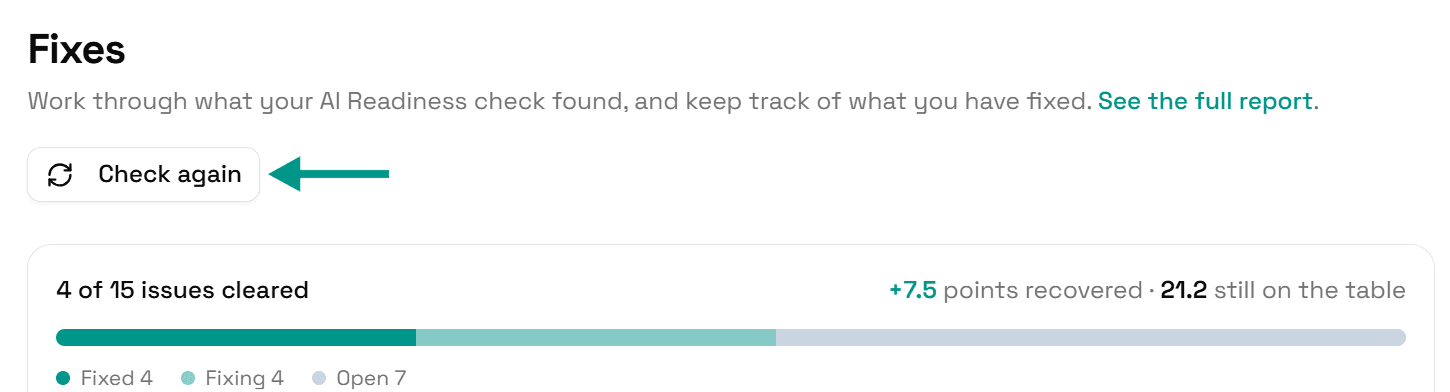
Check again
Go back to Fixes and click Check again. When those pages describe your business, this problem moves to Resolved.
On WordPress
These details can be edited in the dashboard or in the AI Schema Gen plugin: they sync both ways. Details saved in the dashboard reach the plugin when someone next opens your WordPress admin, or within 6 hours. If saving says the plugin has not picked them up yet, open your WordPress admin once, come back, and click Try again.
Check it worked
Run the free AI readiness check again once your change is live. This problem should be gone from the Understand part of the report.
FAQ
See what else your site needs
The free check lists every problem on your site in order of how much it costs you.
Check your site free