
How to Add Schema Markup to Pages That Have None
Some of your pages have no structured data at all, so an AI tool has only the wording to go on. On WordPress and Next.js sites, one button on the Fixes page adds the right markup to every one of them.
In your report
Pages carry no structured information at all
What this means
Structured data (also called schema markup) is a short, hidden description of a page written for machines: this page is an article by this business, this one is a product with this price, this one is a service in this town.
This problem means some of the pages our check read have none of it. Visitors see the page as normal, but a machine reading it gets the words with nothing confirming what they mean.
Why it matters for AI
An AI tool has to work out from the wording alone whether a page is a product, a service, a blog post or a contact page, and who it belongs to. Structured data says it outright, so there is less to guess and less to get wrong.
It also links each page back to your business, so the pages add up to one clear picture of who you are instead of a pile of separate documents.
Fix it with AI Schema Gen
Every step below is in the AI Schema Gen dashboard, whatever your site is built with. For the fixes to reach your pages, your site needs to be connected first: connect your site.
- 1
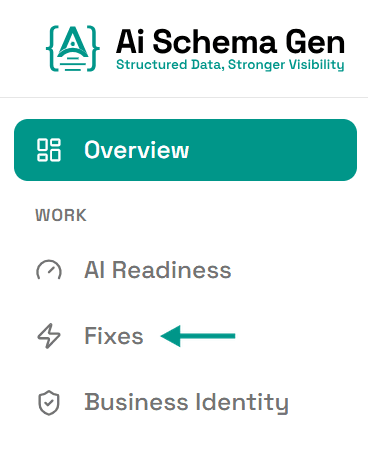
Open Fixes
In the menu on the left, click Fixes.
- 2
Click Fix pages
In Your fix plan, under Fix now, find Add missing markup to and the number of pages. Click Fix with that number, for example Fix 12 pages.
If the card shows a message instead of the button, it says what is in the way, for example that your site needs connecting first.
- 3
Click Start
A window shows how many pages will get markup. Click Start.
Each plan covers a number of pages per site (25 on the free plan). If your site has more pages than that, the window says how many will wait until you upgrade, and the rest are fixed straight away.
- 4
Wait for it to finish
The card shows how far it has got, for example 5 of 12 pages done. We work out the right markup for each page from what is already on it, and leave any markup that is already there alone.
Big sites are done in batches. When one batch finishes, the button comes back for the next.
- 5
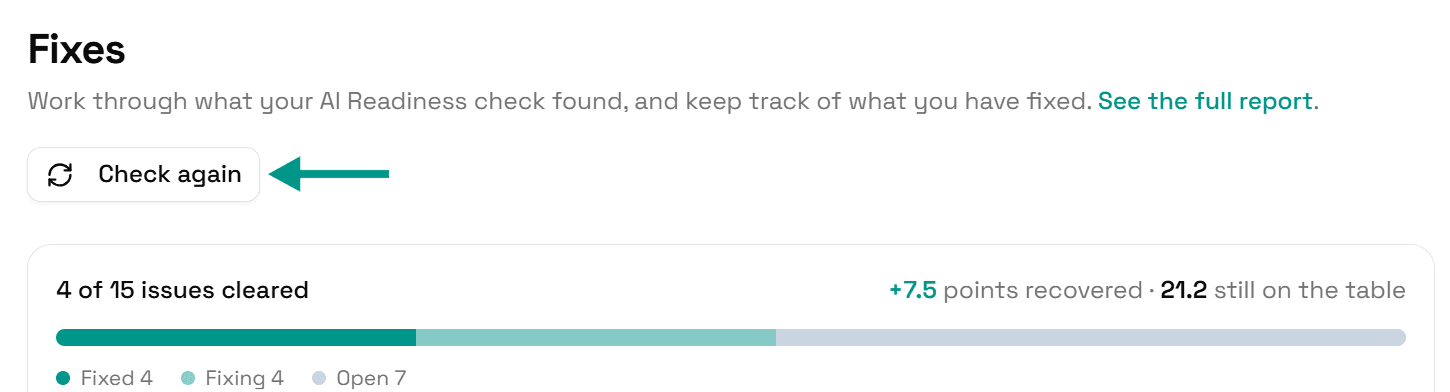
Check again
Go back to Fixes and click Check again. When the pages carry markup, this problem moves to Resolved.
On WordPress
The AI Schema Gen plugin picks up the work every 15 seconds, but only while WordPress is running its scheduled tasks. If the card says Your site has not started this yet, open your WordPress admin once; that normally starts it straight away.
Check it worked
Run the free AI readiness check again once the job has finished. This problem should be gone from the Understand part of the report, or show far fewer pages.
FAQ
Related fixes
See what else your site needs
The free check lists every problem on your site in order of how much it costs you.
Check your site free