
How to Back Up What AI Says About Your Business With Structured Data
An AI answered questions about your business correctly, but only by reading between the lines of your text. Nothing in your structured data confirms those answers. Adding the same facts in Business Identity makes them certain.
In your report
Answers were read out of your wording, not stated as fact
What this means
Our check asks an AI six basic questions about your business using your homepage text. Then, for each one it could answer, we look for the same fact in your structured data.
This problem counts the answers that had no match there. The AI got it right this time, but it worked it out from your sentences. Nothing states it as a plain fact.
Why it matters for AI
Different AI tools read the same sentence differently. One works out that you are based in Leeds; another reads the same paragraph and gets it wrong, or is not sure enough to say.
A fact stated as data is read the same way by every tool. It turns "probably" into "yes".
Fix it with AI Schema Gen
Every step below is in the AI Schema Gen dashboard, whatever your site is built with. For the fixes to reach your pages, your site needs to be connected first: connect your site.
- 1
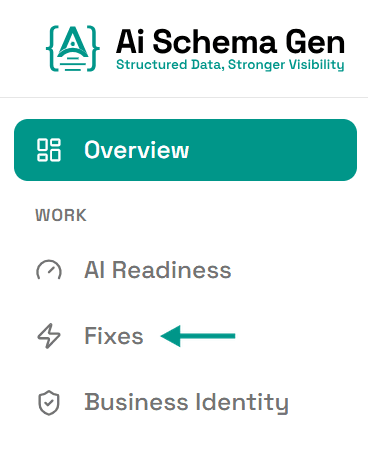
Open Fixes
In the menu on the left, click Fixes.
- 2
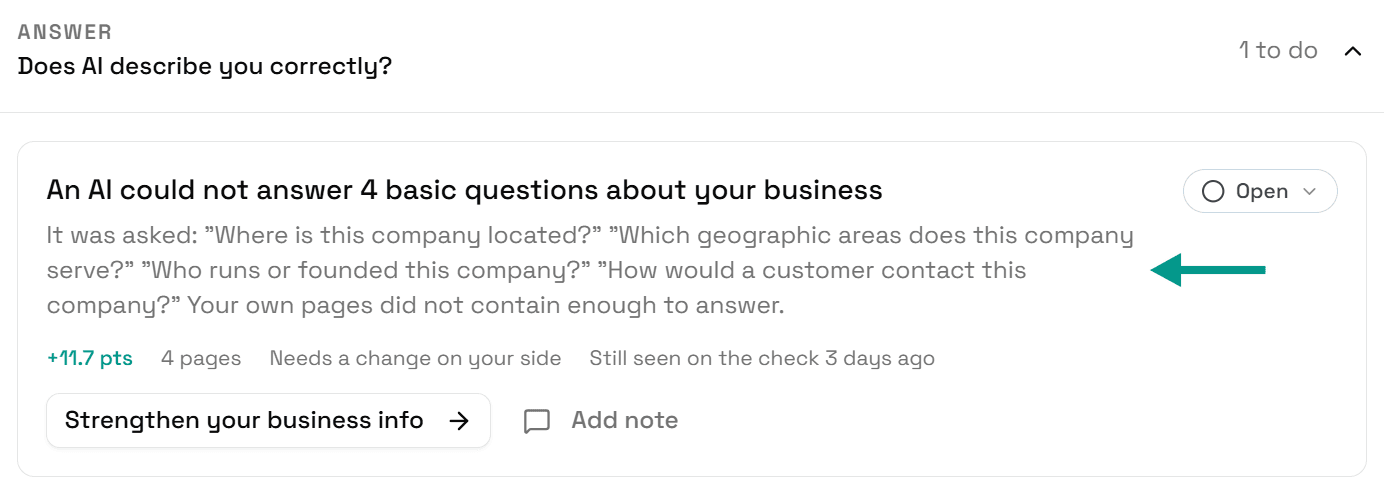
See which answers are not backed up
Scroll down to Answer. The card lists each question the AI answered from your wording alone.
- 3
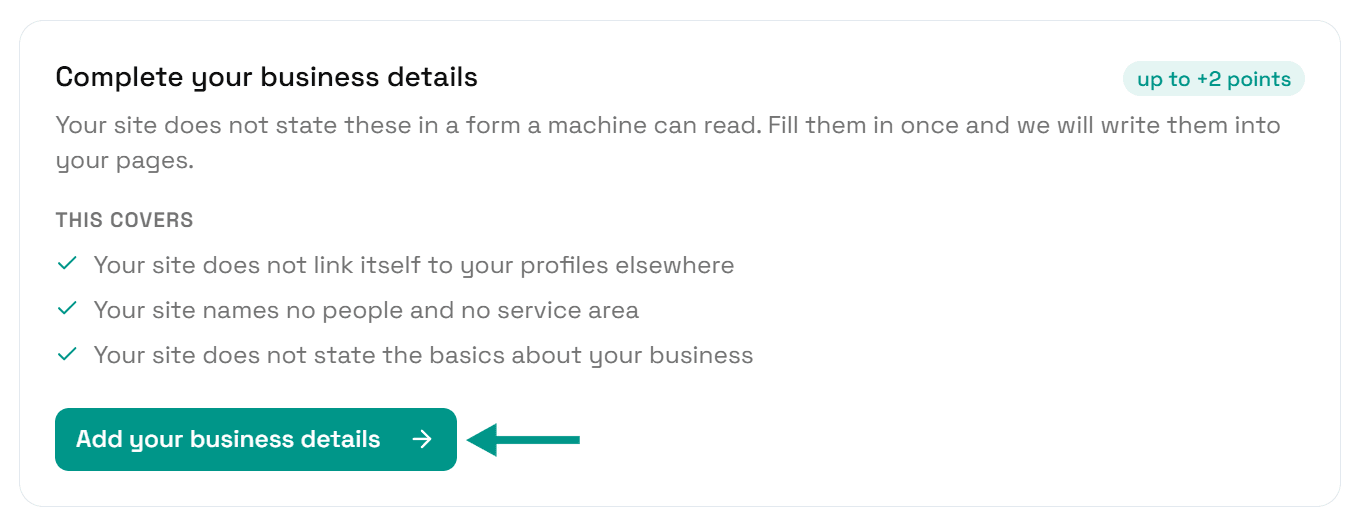
Click Add your business details
Find Complete your business details and click Add your business details.
- 4
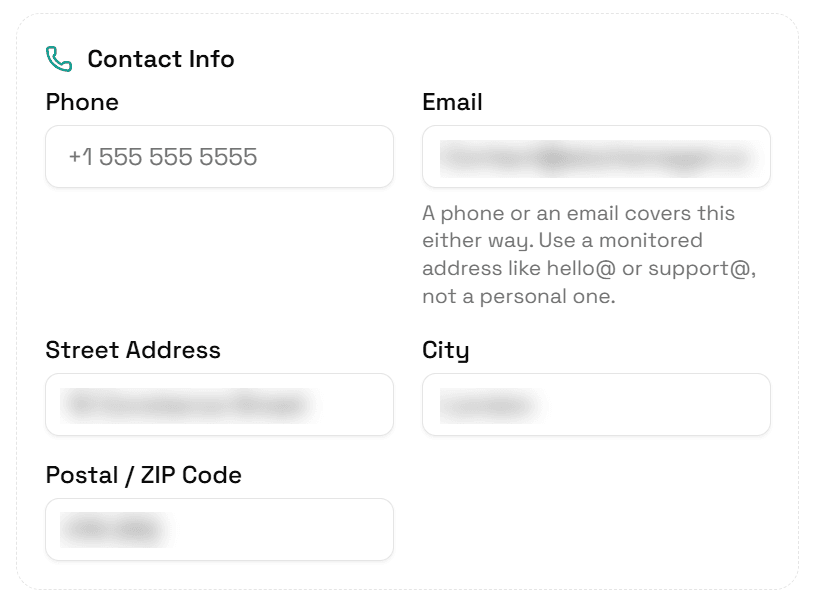
Fill in the matching details
Each question has a place in Business Identity. What you do: Business Type and Description. How to contact you and where you are: Contact Info. Who runs the business: Founders. Which areas you serve: Service Area (called Where You Work if you are not a local business).
Write the same facts your homepage says. The point is for the two to agree.
- 5
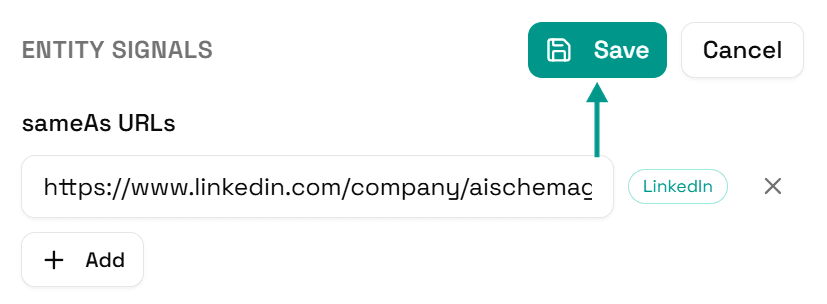
Click Save
Scroll back up and click Save.
- 6
Your pages update
You will see Saved. Your live pages are being updated now.
On a copy-and-paste site, go to Sites and click Get the new code instead.

- 7
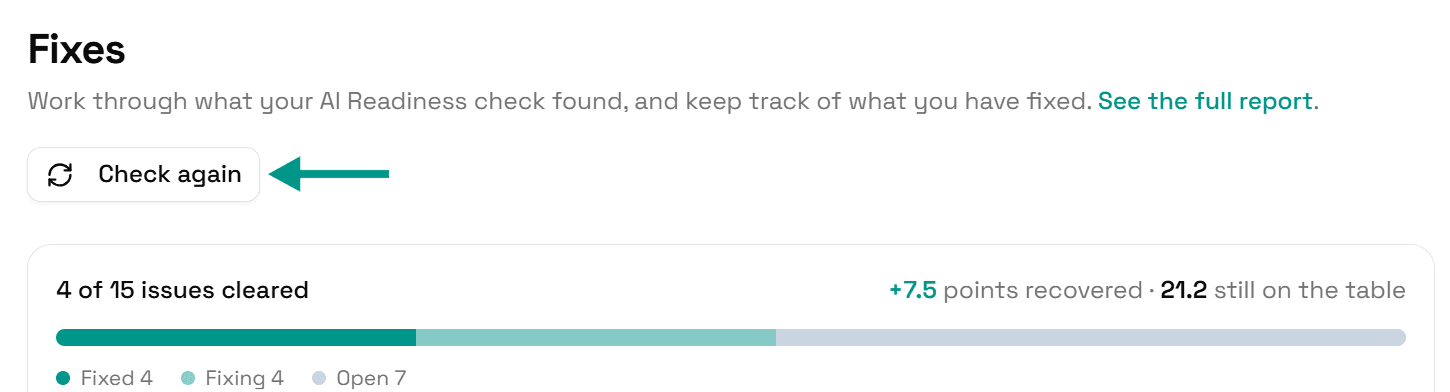
Check again
Go back to Fixes and click Check again. When each answer has a matching fact in your data, this problem moves to Resolved.
On WordPress
These details can be edited in the dashboard or in the AI Schema Gen plugin: they sync both ways. Details saved in the dashboard reach the plugin when someone next opens your WordPress admin, or within 6 hours. If saving says the plugin has not picked them up yet, open your WordPress admin once, come back, and click Try again.
Check it worked
Run the free AI readiness check again once your change is live. The Answer part of the report shows, for each question, whether your structured data now backs it up.
FAQ
Related fixes
- Why AI Can't Answer Basic Questions About Your Business, and How to Fix It
- How to Connect Your Website to AI Schema Gen (WordPress, Next.js, Wix, Shopify and More)
- How to Make Your Phone, Email and Address Readable by AI
- How to Tell AI Who Runs Your Business and Where You Work
- How to Tell AI the Basics About Your Business (Name, Type, Logo, Website)
See what else your site needs
The free check lists every problem on your site in order of how much it costs you.
Check your site free