
How to Tell AI Who Runs Your Business and Where You Work
Nothing on your site states, as data, who runs the business or where it works. Adding a founder and your service area (or your company number, for businesses that are not local) covers both.
In your report
Your site names no people and no service area
What this means
Our check looks for two things in your structured data. The first is a named person who runs the business. The second depends on the kind of business: for a local business it is the area you serve, and for other businesses it is an official registration number, such as a company or tax number.
This problem appears when one or both are missing.
Why it matters for AI
"Who runs it?" and "Do they cover my area?" are two of the questions people ask most about any business. If your site does not say, an AI assistant has to guess or leave it out.
A named person and an official number are also strong signs that a real, accountable business is behind the website.
Fix it with AI Schema Gen
Every step below is in the AI Schema Gen dashboard, whatever your site is built with. For the fixes to reach your pages, your site needs to be connected first: connect your site.
- 1
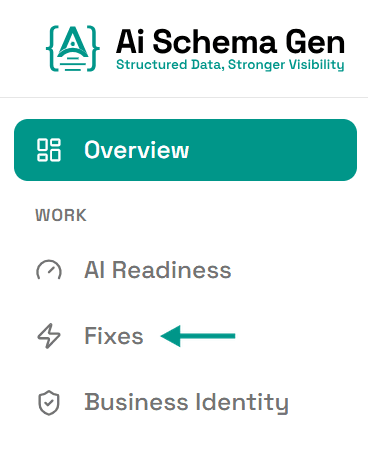
Open Fixes
In the menu on the left, click Fixes.
- 2
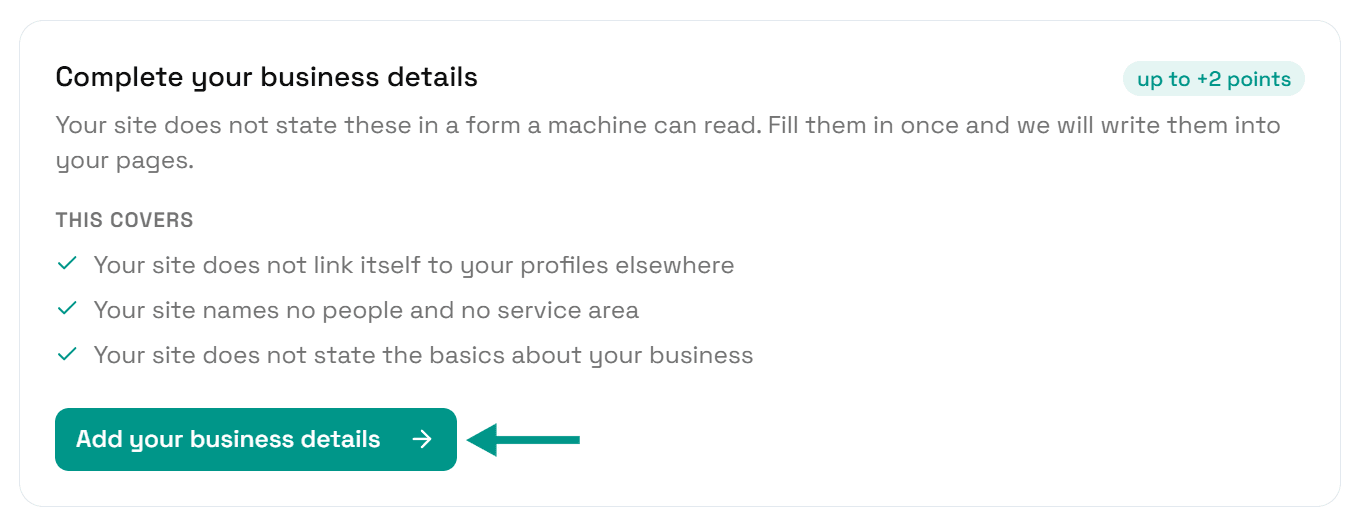
Click Add your business details
Find Complete your business details and click Add your business details.
- 3
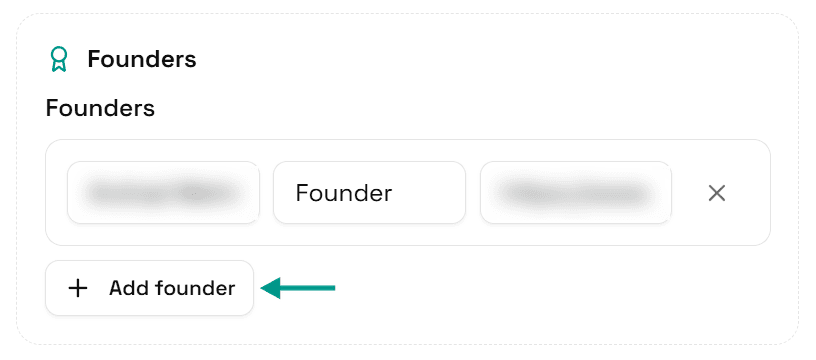
Add who runs the business
Under Founders, click Add founder and enter a name and role. One person is enough.
- 4
Local business: add the area you serve
Under Service Area, click Add area and type a town, region or country. Pick the match from the list. Add each area you cover.
- 5
Other businesses: add your registration number
Under Registry IDs (shown as Registry ID (Company Number) for UK businesses), fill in the number that applies to you: Companies House Number for a UK company, or Tax ID or VAT ID elsewhere.
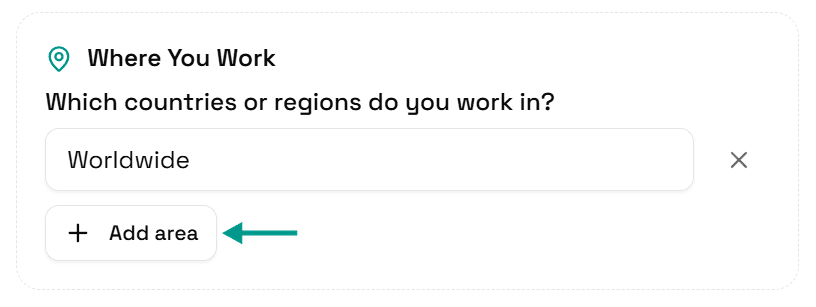
The section called Where You Work is still worth filling in, so AI tools know which countries or regions you serve.
- 6
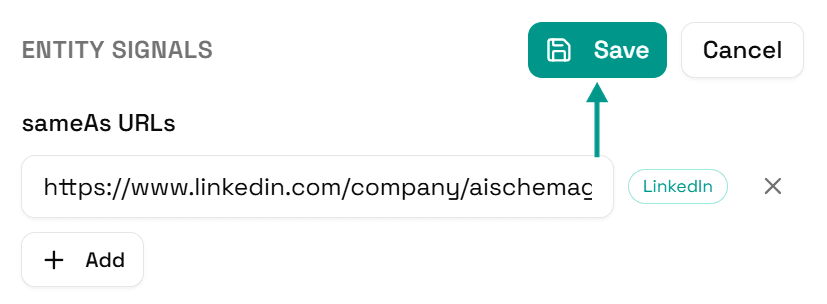
Click Save
Scroll back up and click Save.
- 7
Your pages update
You will see Saved. Your live pages are being updated now.
On a copy-and-paste site, go to Sites and click Get the new code instead.

- 8
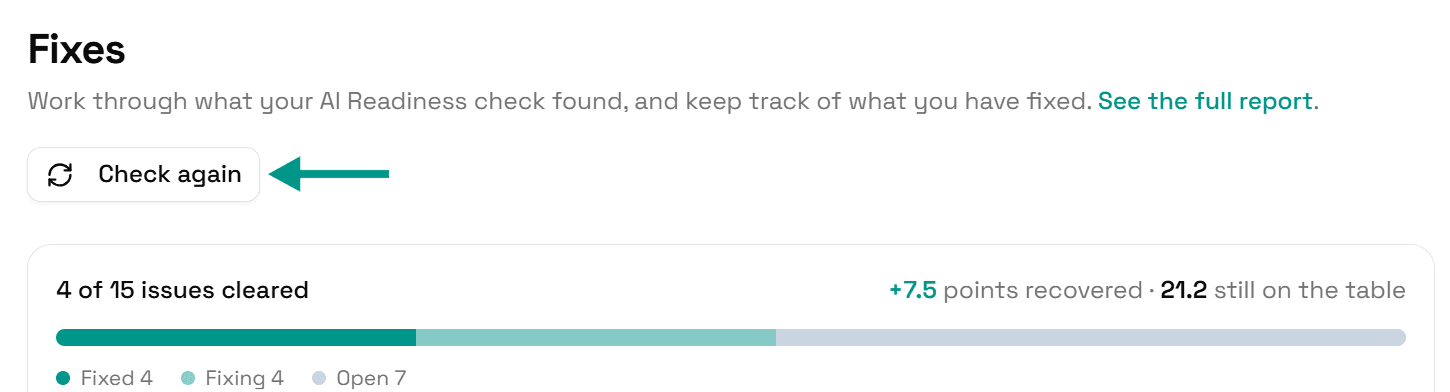
Check again
Go back to Fixes and click Check again. When these details are on your pages, this problem moves to Resolved.
On WordPress
These details can be edited in the dashboard or in the AI Schema Gen plugin: they sync both ways. Details saved in the dashboard reach the plugin when someone next opens your WordPress admin, or within 6 hours. If saving says the plugin has not picked them up yet, open your WordPress admin once, come back, and click Try again.
Check it worked
Run the free AI readiness check again once your change is live. This problem should be gone from the Understand part of the report.
FAQ
See what else your site needs
The free check lists every problem on your site in order of how much it costs you.
Check your site free