
How to Find Every Image Missing Alt Text on Your Website
Many of your images have no written description (alt text). A description is the only thing a text-based AI can read from a picture. Your dashboard gives you the full list of images to fix.
In your report
Images have no description
What this means
Every image on a web page can carry a short hidden description, called alt text. Screen readers read it aloud to people who cannot see the image, and machines read it in place of the picture.
Our check counts the images on your pages and how many of them have no description.
Why it matters for AI
An AI tool reading your page as text gets nothing at all from an image with no description. A photo of your finished work, your team or your product is invisible to it.
Fix it with AI Schema Gen
Every step below is in the AI Schema Gen dashboard, whatever your site is built with. For the fixes to reach your pages, your site needs to be connected first: connect your site.
- 1
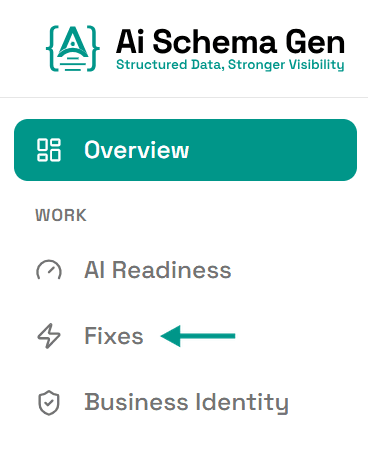
Open Fixes
In the menu on the left, click Fixes.
- 2
Find the card under Read
Scroll down to Read and find the card ending images have no description.
- 3
Click Download list (.md)
Click Download list (.md). You get one file listing every image that has no description and the page it is on.
Or click Copy to copy the same list, ready to paste to the person or the AI coding assistant who edits your site.
- 4
Add a description to each image
This is a change on your side. Descriptions are added where the images are: in your website builder or media library.
AI Schema Gen cannot make this change from the dashboard: it works on the structured data of your pages, not on the pages themselves.
- 5
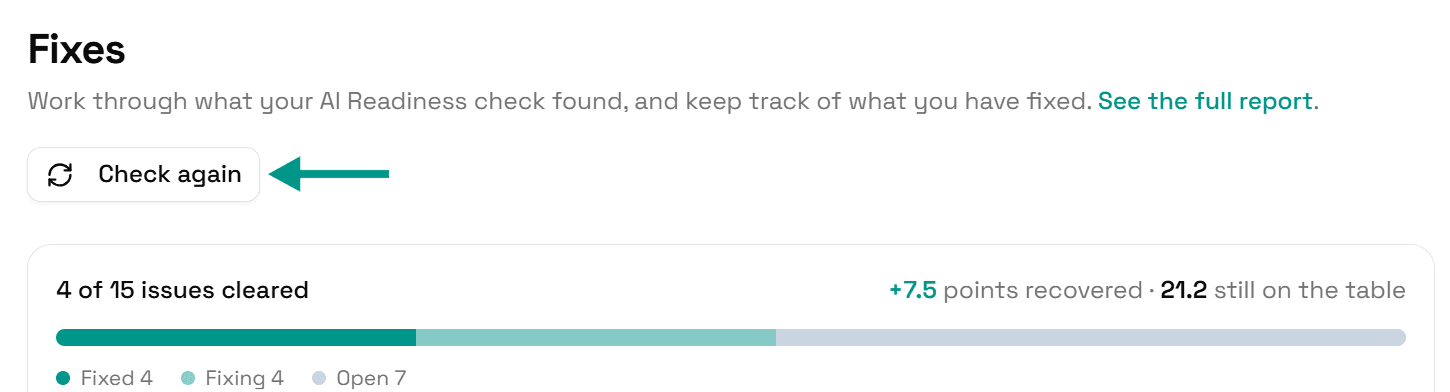
Check again
Go back to Fixes and click Check again. When your images have descriptions, this problem moves to Resolved.
Check it worked
Run the free AI readiness check again once your change is live. This problem should be gone from the Read part of the report.
FAQ
See what else your site needs
The free check lists every problem on your site in order of how much it costs you.
Check your site free