
Why Your Website Needs About, Contact, Privacy and Terms Pages for AI
Our check could not find one or more of the four pages that show a real business stands behind a website: about, contact, privacy and terms. Writing them is a job for your website, and once they are live we mark them up so machines know what each one is.
In your report
Your site has no about page, contact page, privacy policy or terms page
What this means
Most genuine business websites have four plain pages: an about page saying who you are, a contact page saying how to reach you, a privacy policy, and a terms page. The report names the ones it could not find.
Our check looks for them in four ways: links on your pages whose words say what they are (such as About us or Contact), a page title that starts with those words, a page address such as /about or /contact-us, and structured data that labels a page as an about page or a contact page.
So a page can exist and still be missed: for example when nothing on the pages we read links to it, or when its link, title and address all use words of their own.
Why it matters for AI
An AI tool deciding whether to recommend a business looks for signs that a real organisation is behind the website. These four pages are where those signs usually live: who runs it, where it is, how to reach it, and what rules it works by.
Each missing page costs a quarter of the trust pages part of your score.
Fix it with AI Schema Gen
Every step below is in the AI Schema Gen dashboard, whatever your site is built with. For the fixes to reach your pages, your site needs to be connected first: connect your site.
- 1
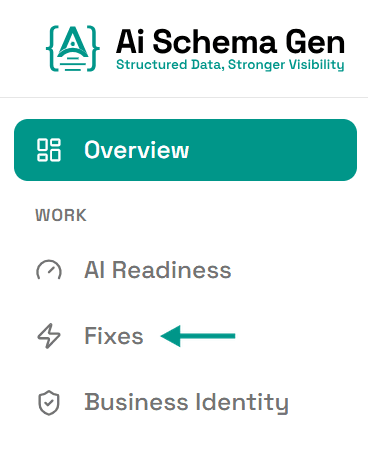
Open Fixes
In the menu on the left, click Fixes.
- 2
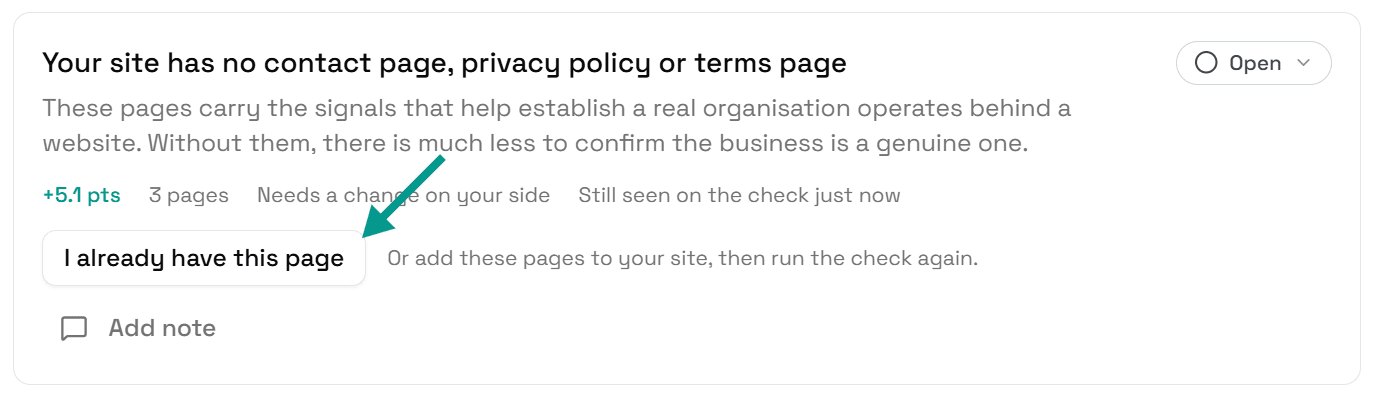
Already have the page? Click I already have this page
Scroll down to Understand and find the card that starts Your site has no. If you do have one of the pages it names, click I already have this page.
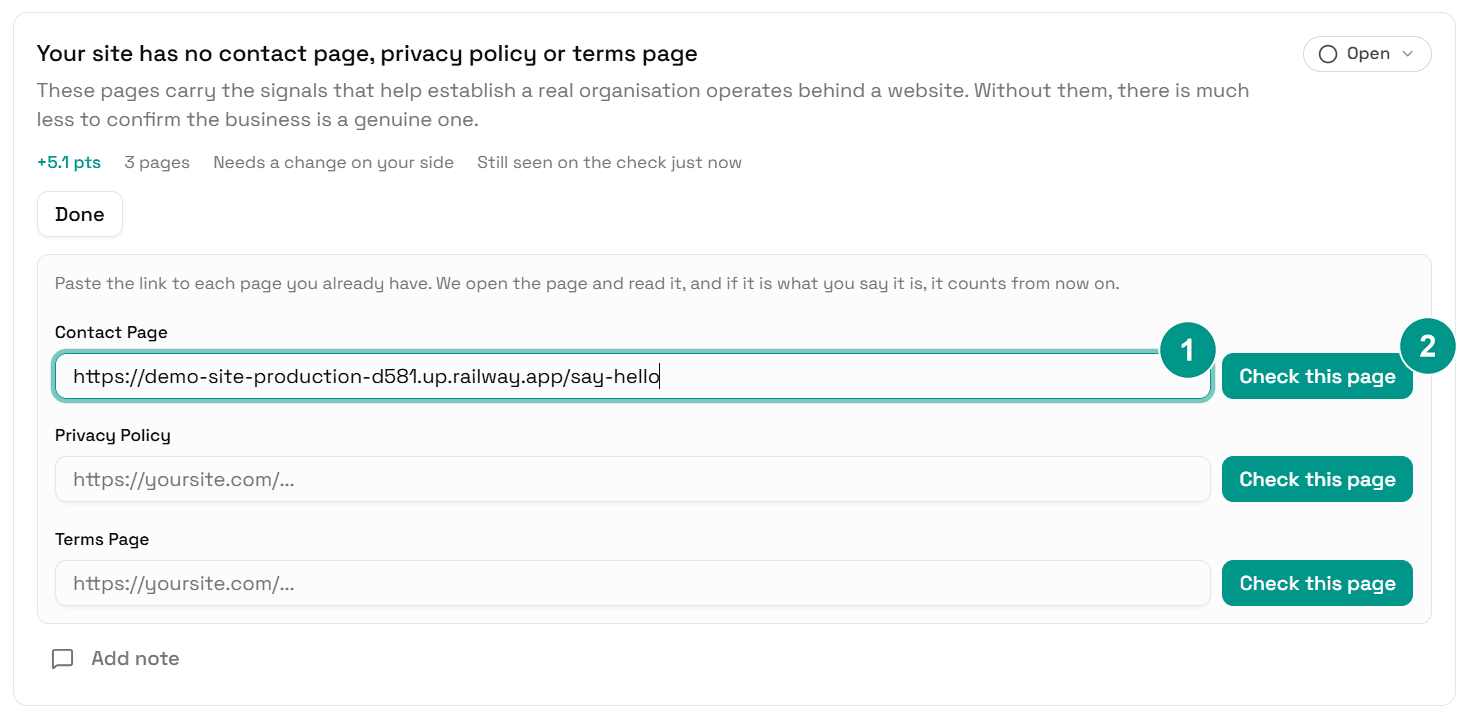
Paste the link to the page into its box (1) and click Check this page (2). We open the page and read it. If it is what you say it is, it counts from then on and your score goes up.
If we cannot confirm it, the card says why, for example that the page did not load or that it reads like a different kind of page.
- 3
Add the pages you really do not have
This part is a change on your side. AI Schema Gen cannot write these pages or add them to your menu from the dashboard; they are added in your website builder, or by whoever looks after your site.
Once a page is live, come back here for the next steps.
- 4
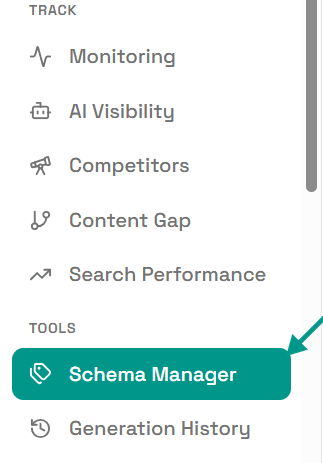
Open Schema Manager
In the menu on the left, click Schema Manager.
- 5
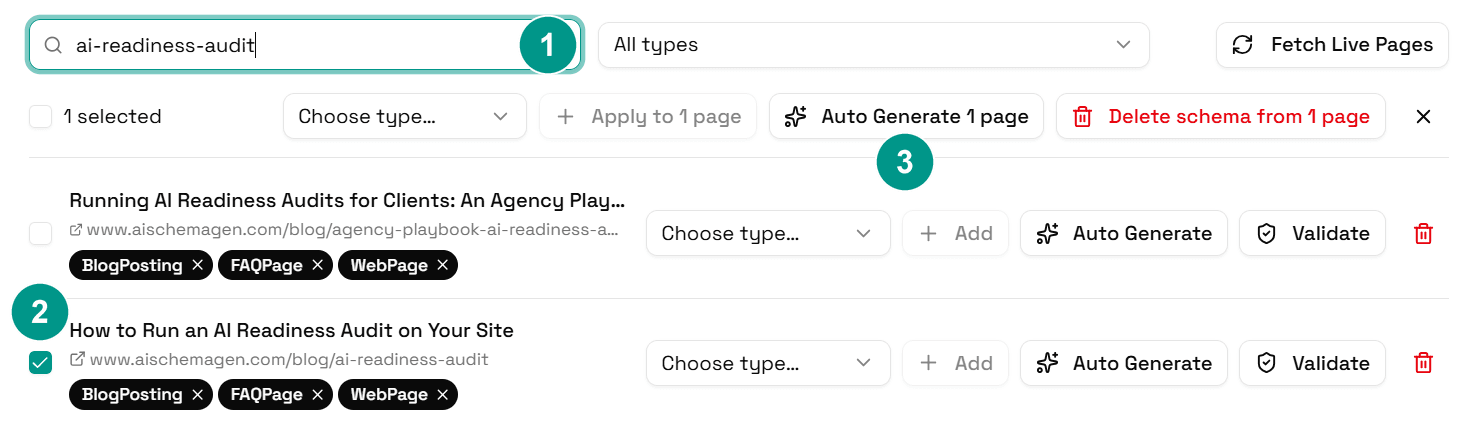
Tick your about and contact pages and click Auto Generate
Type about into Search pages and tick the box next to your about page. Do the same for contact.
Then click Auto Generate with the number of pages you ticked. We read each page's title and mark your about page as an about page and your contact page as a contact page, linked to your business.
- 6
Wait for it to finish
Each page shows Generating… while it is being worked on. When it finishes, the page lists its new schema types, and your live pages are updated.
Privacy and terms pages have no special label of their own in structured data, so there is nothing extra to add for them. Our check finds those from their links, titles and addresses.

- 7
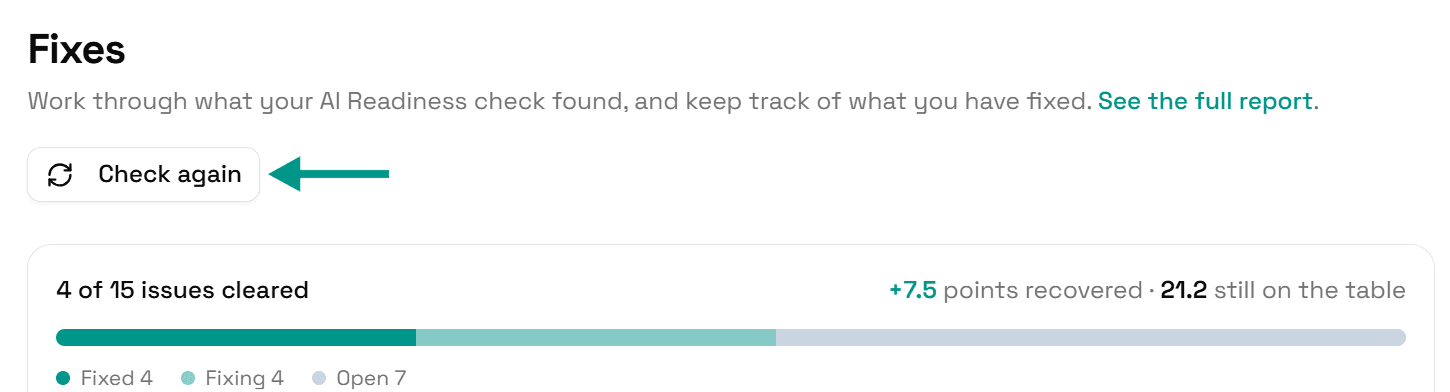
Check again
Go back to Fixes and click Check again. When all four pages are found, this problem moves to Resolved.
On WordPress
If you ticked Auto-generate schema when publishing posts when setting up the AI Schema Gen plugin, a new page gets its markup by itself as soon as you publish it. Your about and contact pages may then already show their schema types in Schema Manager, and you can go straight to the last step.
Check it worked
Run the free AI readiness check again once your pages are live. The report lists every page it found under Trust pages, and this problem should be gone or name fewer pages.
FAQ
See what else your site needs
The free check lists every problem on your site in order of how much it costs you.
Check your site free