
How to Fix Schema Markup That Is Missing Expected Details
Some entries in your structured data leave out a detail that kind of entry is expected to have, such as a product with no price details or an article that does not say who published it. Rebuilding the markup on those pages fills it in.
In your report
Entries are missing information that type normally carries
What this means
Each kind of entry in structured data has details it is expected to carry. A product is expected to say how it is sold: its price and whether it is in stock. An article or blog post is expected to say who published it.
This problem counts the entries our check found without those. The card on your Fixes page names exactly which details are missing.
Why it matters for AI
An AI tool can see the thing exists but cannot place it. A product with no price cannot be compared or recommended. An article with no publisher belongs to nobody, so it does nothing for your reputation.
Fix it with AI Schema Gen
Every step below is in the AI Schema Gen dashboard, whatever your site is built with. For the fixes to reach your pages, your site needs to be connected first: connect your site.
- 1
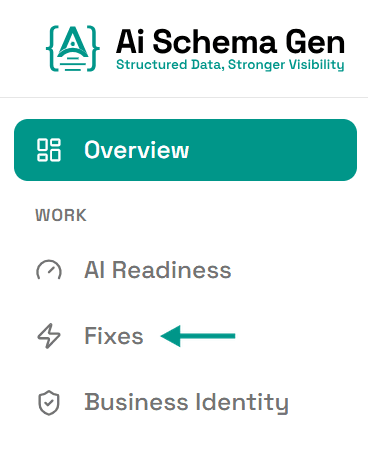
Open Fixes
In the menu on the left, click Fixes.
- 2
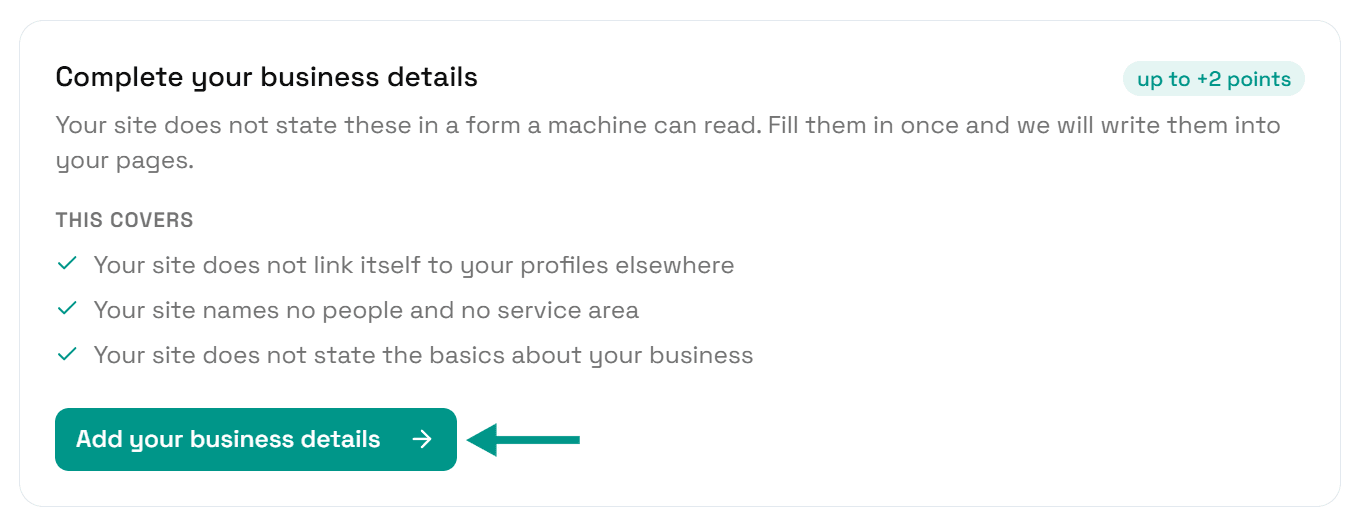
Fill in your business details first
If Complete your business details is on the page, do that first: click Add your business details, fill in the form and click Save.
Your business is the publisher of your articles, so we need to know who it is before we can name it.
- 3
Find the card and click Review structured data
Scroll down to Understand. The card ending missing information that type normally carries says which details are missing and lists the first few pages.
Click Review structured data.
- 4
Tick the pages and click Auto Generate
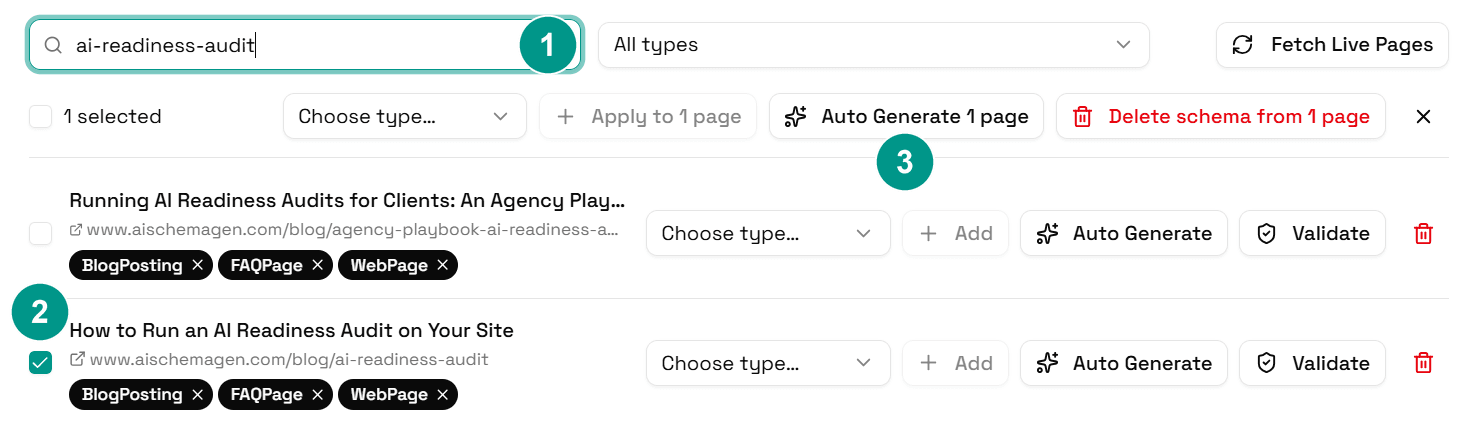
Schema Manager opens with every page of your site. Type a page from the card into Search pages (1) and tick the box next to it (2). Do the same for each page on the card.
Then click Auto Generate with the number of pages you ticked (3). We work out the right markup for each page again and replace what we put there before. In the new markup, articles name your business as their publisher, and products carry the price details that are shown on the page.
- 5
Wait for it to finish
Each page shows Generating… while it is being rebuilt. When it finishes, the page lists its new schema types, and your live pages are updated.
- 6
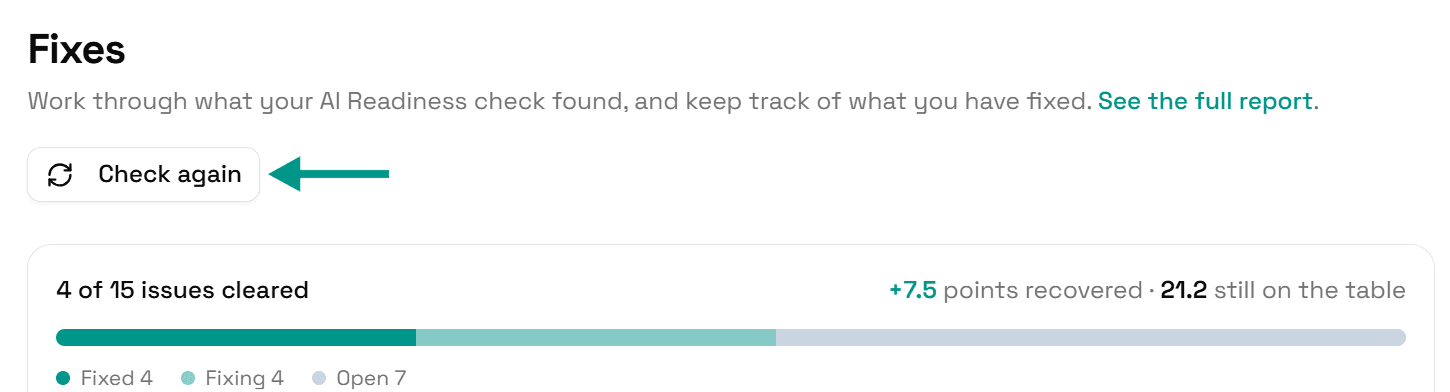
Check again
Go back to Fixes and click Check again. When each entry carries what is expected, this problem moves to Resolved.
On WordPress
Our plugin replaces the markup AI Schema Gen puts on your pages, and takes out the parts of Yoast SEO or Rank Math markup that overlap with ours. Markup added by any other plugin, by your theme or by hand is not something we can change from the dashboard. If the problem is still listed after you generate, one of those is the likely source.
Check it worked
Run the free AI readiness check again once your change is live. This problem should be gone from the Understand part of the report.
FAQ
See what else your site needs
The free check lists every problem on your site in order of how much it costs you.
Check your site free