
How to Add an llms.txt File to Your Website
An llms.txt file is a short, plain guide to your site for AI tools: your name, a one-line summary and the pages worth reading. It is optional and does not affect your score. On a connected site we build and publish it for you.
In your report
Your site has no llms.txt file
What this means
An llms.txt file sits at yoursite.com/llms.txt. It is plain text and lists, in a few lines, who you are and which pages matter most.
Our check looks for it. Not having one is an opportunity, not a fault: it takes nothing off your score.
Why it matters for AI
It gives an AI tool a clean starting point instead of leaving it to piece your site together from links and menus.
The idea is still new and not every AI tool reads it yet, which is why we do not score it. It costs nothing to have.
Fix it with AI Schema Gen
Every step below is in the AI Schema Gen dashboard, whatever your site is built with. For the fixes to reach your pages, your site needs to be connected first: connect your site.
- 1
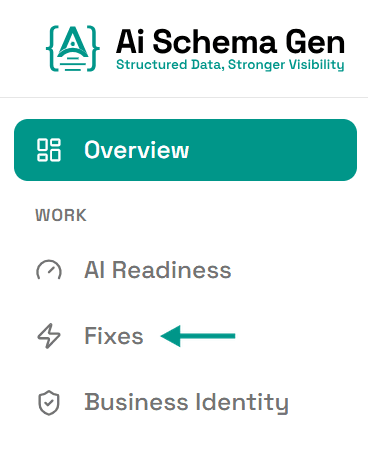
Open Fixes
In the menu on the left, click Fixes.
- 2
Click Publish llms.txt
Scroll to Optional extra and find Publish an llms.txt file. Click Publish llms.txt.
We build the file from your business details and your list of pages, and your site serves it at
/llms.txt. You will see Published. The next check will confirm it. - 3
Next.js: add one small file if asked
On a Next.js site, the file is served by our package. If your project does not have the llms.txt route yet, the dashboard shows the one file to add. Copy it into your project and deploy once.
- 4
Open it to check
Go to
yoursite.com/llms.txtin your browser. You should see your business name, a short summary and a list of your pages.
On WordPress
On WordPress the AI Schema Gen plugin (version 1.0.36 or later) serves the file for you. It can be switched on or off under Settings > AI Access in the plugin. If your site already has its own llms.txt file on the server, that one is used instead.
Check it worked
Run the free AI readiness check again. The Discover part of the report should show the llms.txt file as found.
FAQ
See what else your site needs
The free check lists every problem on your site in order of how much it costs you.
Check your site free