
Most guides to schema markup in Wix start with a blank box: write some JSON-LD, paste it into your page settings, publish. That skips the most important fact about Wix. By the time you open that box, Wix has usually written some schema for you already.
Add your business name and address in your site settings, and Wix puts business markup on your homepage. Create a blog post, a product, an event or a bookable service, and Wix attaches markup to that page too, filled in from the page's own details. Turn on one more setting and AI writes extra markup for every blog post you publish.
That is mostly good news. It also means the usual advice, "paste your schema into the page," can leave a page describing the same thing twice in two slightly different ways, or keep a label Wix picked that doesn't fit your business at all.
So this guide works the other way round. First, find out what Wix already adds and where. Then decide, page by page, whether to leave it, change it, replace it or add to it. Then add only what is genuinely missing, inside Wix's limits, and check the live page.
What Wix already adds without asking
Schema markup (also called structured data) is a block of code in a page that states facts about it in a fixed vocabulary from schema.org: this page is a product, it costs this much, this business is at this address. Search engines use it for rich results, and AI tools read it to work out what a page is and who stands behind it.
Here is what Wix adds on its own, according to its help pages on preset markups and adding structured data:
| Where | What Wix adds | When it appears |
|---|---|---|
| Homepage | Local Business markup | Once you add a business name and location in Business Info |
| Wix Stores product pages | Product markup | When you create the product |
| Wix Blog posts | Blog Posting markup (or News Article, or Article) | When you create the post |
| Wix Blog posts | Extra AI-generated markup | Only if you switch the AI option on |
| Wix Blog collapsible lists | FAQ markup | Only if you turn it on for that list |
| Wix Events pages | Event markup | When you create the event |
| Wix Bookings service pages | Course markup | When you create the service |
| Wix Portfolio projects and collections | Images markup | When you create them |
| Every page, with Wix Site Search installed | Sitelinks search box markup | When you add the app |
Wix calls the page-type versions "presets." They aren't fixed text. They use variables, placeholders such as Product Name, Product Price or Post Title, which Wix fills in from each page's own content. That is why one preset can describe hundreds of products correctly: each product page gets its own values.
Two things follow from that table.
First, a typical small business site on Wix already has schema on its most important pages. If you run a shop, an events calendar or a blog, the basics are covered before you write a line of code. The job is less "add schema" and more "check what's there, and fill the gaps."
Second, presets are only as good as the details behind them, and only as accurate as the label Wix chose. A product with no brand and a one-line description gets a thin Product block. A service page gets labelled as a course whether or not you teach anything. We'll come back to both.
Step one: look at what each page already says
Before adding anything, see what your pages already carry. There are three places to look.
The page-type settings. In your dashboard, open SEO Settings, choose a page type such as Product pages or Blog posts, and click Edit next to Structured data markup. If you don't see it, click Customize defaults first. From there you can click Preview Preset to see the code Wix generates, and Switch Preset where a page type has more than one option (blog posts do).
A single page's settings. In the editor, open the page's SEO settings (in the Wix Editor: Pages & Menu, then the three dots next to the page, then SEO basics), go to the Advanced SEO tab and click Structured data markup. This shows what applies to that one page, including the homepage's Local Business markup, with options to test it on Google or exclude it.
The live page itself. Settings show what Wix intends to output. The live page shows what actually reaches search engines and AI crawlers, including anything an app adds that the settings screen doesn't list. Open the published page and run it through a structured data reader. Our free Chrome extension lists every block on the page you're looking at and how they connect, which makes two competing business descriptions easy to spot.
Write down, for your homepage and one page of each type you use, which blocks appear and what they say. That list is your starting point for everything below.
The four ways to change schema in Wix
Wix gives you four separate controls, and they do different jobs. Knowing which is which saves a lot of confusion.
1. Page-type settings: change every page of one kind at once
SEO Settings apply the same rules to every page of a type. This is where you change a preset for all products, all posts or all services together. You can:
- Switch to another preset where one exists (Blog Posting, News Article or Article for posts).
- Exclude the preset, so that page type outputs no Wix markup at all.
- Convert it to custom markup: Preview Preset, then Convert to custom markup, then edit the code. Use the Add Variable button to keep values dynamic, so each page still fills in its own name, price or date.
- Add new markup that applies to every page of that type, again with variables.
Wix's preset page says you can have up to five markups per SEO setting, counting the preset. One limit worth knowing: you can't change the default markup for your main pages (ordinary pages like Home, About and Contact) at the page-type level. Those are changed one page at a time.
2. Single-page settings: change one page
For any individual page, the Advanced SEO tab lets you add markup to that page alone: click Add New Markup, paste your code, click Apply, then publish. This is the right place for a homepage business block, an About page's details about the founder, or a one-off landing page. Wix's help says up to five markups per page.
3. AI-generated markup: blog posts only
Wix can scan each published blog post and write markup for it automatically. To turn it on: SEO Settings, Blog posts, Customize defaults, Edit next to Structured data markup, then switch on "Activate AI-generated markups for your blog." According to Wix's help page on AI-generated markup, it can produce types such as Article, BlogPosting, FAQPage and Recipe depending on how the post is written, and it refreshes the markup when you edit the post.
A few details matter here:
- It's read-only. To change what it wrote, you convert it to custom markup, and from then on keeping it accurate is your job.
- It sits alongside, not instead of, your own markup. Wix says it doesn't overwrite or remove manual markup. Both can exist on the same post.
- It only works for blog posts. Your homepage, service pages and other pages still need the other controls.
Because both can exist at once, the risk is two blocks that disagree, for example your own FAQ block and an AI-generated one with different wording. Wix's own advice is to avoid manual markup that contradicts the AI version for the same type. In practice: if you turn the AI option on, remove any hand-written blocks that now repeat what it produces.
4. Code: for developers on Velo
If your site uses Velo (Wix's coding layer), the setStructuredData() function in Wix's developer documentation sets a page's structured data from code, which helps for dynamic pages built from a database collection. Wix's documentation notes that each call replaces structured data set earlier on the page, so test the live result to see exactly what ends up there. Most business owners will never need this; the settings screens cover nearly every case.
The homepage: Wix's business block is a good start, not the whole story
The homepage matters more than any other page for schema, because it's where search engines and AI tools look to work out which business owns the site. Every other page's markup ideally points back to that one description.
Wix's automatic Local Business markup is built from four settings, according to its help page on Local Business markup:
- Name, from the Profile section of Business Info
- URL, your site's address
- Image, the logo from Business Info
- Address, from the Location and Contact Info section
That's a solid base, and it's worth filling in properly even if you do nothing else: add the logo, use your exact trading name, use the same address format you use everywhere else.
But look at what isn't on that list. No phone number. No opening hours. No links to your social profiles and directory listings (the sameAs property, which is one of the main ways a machine connects your site to the rest of your presence online). No description of what you do, no service area, no ID that other pages can point to. Wix's page also says it creates the markup for your primary location only. If you have several branches, the others get nothing; our guide to several locations covers how to describe them.
Your options
Option A: keep Wix's block and fill in Business Info. Simplest, no code. Right for a business that only needs the basics.
Option B: replace it with a fuller block. Write (or generate) a complete business description, add it to the homepage through Add New Markup, and then exclude Wix's own Local Business markup from the homepage. In the editor: the homepage's SEO basics, Advanced SEO, Structured data markup, the three dots next to Local business, then Exclude from page. You can include it again at any time.
What not to do: keep both. Two business blocks on one homepage, one with a phone number and one without, perhaps with slightly different names, is exactly the kind of conflicting signal that makes a machine less sure who you are. Pick one source and make it complete.
Here is the shape of a fuller homepage block, trimmed for space:
{
  "@context": "https://schema.org",
  "@type": "LocalBusiness",
  "@id": "https://www.example.com/#localbusiness",
  "name": "Example Cleaning Co",
  "url": "https://www.example.com/",
  "logo": "https://www.example.com/logo.png",
  "telephone": "+1-555-010-0199",
  "description": "Home and office cleaning in Springfield.",
  "address": {
    "@type": "PostalAddress",
    "streetAddress": "12 Main Street",
    "addressLocality": "Springfield",
    "postalCode": "00000",
    "addressCountry": "US"
  },
  "areaServed": "Springfield",
  "sameAs": [
    "https://www.facebook.com/examplecleaning",
    "https://www.linkedin.com/company/examplecleaning"
  ]
}
The @id line is the important one. It gives the business a fixed address-like name, so a service page or blog post can say "provided by" or "published by" {"@id": "https://www.example.com/#localbusiness"} instead of repeating every detail. Whether to use LocalBusiness (or a more specific type) or Organization depends on whether customers visit you or you serve an area; our post on LocalBusiness or Organization walks through that choice.
When a preset describes the wrong thing
Presets save time, but each one is a single choice made for every Wix site that uses that feature. Sometimes it doesn't fit yours.
Booking pages labelled as courses
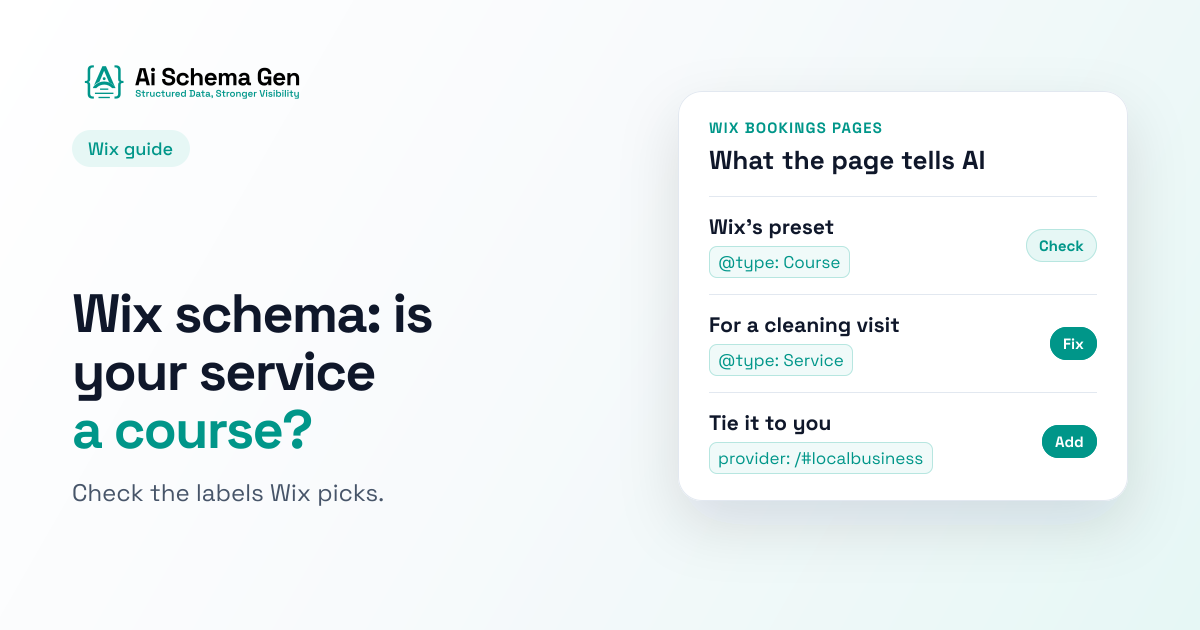
This is the one most worth checking. Wix's preset help page says that when you create a Wix Bookings service page, Wix creates a Course preset for it.
That fits a yoga studio's class or a language school's lesson. It fits far less well if you use Wix Bookings for a house cleaning slot, a haircut, a consultation, a repair visit or a massage. On schema.org, Course means a description of an educational course. A cleaning visit isn't one. Telling search engines and AI tools that your services are courses describes your business as something it isn't.
The fix is the page-type control from earlier:
- Open SEO Settings and choose the Booking services page type.
- Click Edit next to Structured data markup, then Preview Preset and look at what it outputs.
- If Course doesn't describe your services, convert the preset to custom markup and change the type to
Service, keeping the variables for the service name and description. - Add a
providerthat points to your homepage business block's@id, so every service is tied to your business.
If you really do teach (classes, workshops, lessons), the Course preset may be exactly right. The point is to check, not to assume.
Thin product markup
A Product preset fills itself from the product's fields. If those fields are empty, the markup is valid but nearly bare. Wix's own guidance makes the same point: incomplete product information produces structured data that tells search engines less than it could. Before writing any custom product markup, fill in the product details Wix already uses (description, images, price, and a brand where your product settings have one). That improves the preset on every product at once.
Old markup that no longer does anything
If you installed Wix Site Search, your pages may carry sitelinks search box markup. Google announced in October 2024 that it was removing the sitelinks search box from results, and that unused markup like this causes no problems. You can leave it. Similarly, Wix notes that Google now shows FAQ rich results only for large government and health sites; FAQ markup can still help other tools understand a page, but don't expect the expandable questions to appear under your listing.
Wix's rules for custom markup
When you do add your own markup, Wix checks it before accepting it. These rules come from Wix's own help pages, mainly the troubleshooting guide:
- JSON-LD only. Wix accepts structured data in JSON-LD format, not microdata or other formats. Invalid code gets the error "Markup can only be in JSON-LD format."
- Under 7,000 characters per markup. Wix's troubleshooting page also says a page can hold 8,000 characters of markup in total, so keep blocks lean.
- Up to five markups per page, and up to five per page-type setting including the preset.
- One main type per markup. If you need a business block and a FAQ block on one page, add them as two separate markups rather than one big block.
- No HTML inside the code. A stray
<strong>or<br>inside a value fails validation. - Straight quotes only. Curly quotes copied from a word processor (“like these”) break the code. Paste from a plain text editor.
- Keep each value on one line. Wix's guide says a line break inside a field makes it fail validation.
About the opening and closing script lines. JSON-LD normally sits inside <script type="application/ld+json"> and </script>. Wix's help pages aren't consistent on whether its box wants those lines: the troubleshooting guide says your markup should begin and end with them, while the step-by-step guide just says to paste JSON-LD. If Wix rejects your code one way, try it the other way, and check the live page afterwards to confirm the block appears once.
Two more habits that prevent most problems:
- Use full addresses. Write
https://www.example.com/logo.png, not/logo.png. Software reading your markup on its own can't always tell which site a short path belongs to. - Only describe what's on the page. Wix's guide repeats Google's rule that markup should reflect content visitors can see. A price, rating or opening time that appears only in the markup is a mismatch, and mismatches cost trust.
How to check it worked
After publishing, check the live page rather than the settings screen.
- Open the published page (not the editor preview) and check its structured data with a reader or Google's Rich Results Test. From a page's Advanced SEO tab, Wix offers a "Test on Google" option next to each markup.
- Count the business blocks on the homepage. There should be one. If Wix's Local Business and your own both appear, exclude one.
- Check the type on service and product pages. Is a cleaning service still described as a Course? Does the product block include a price and description?
- Check the connections. Does each service's
provider, and each post'spublisher, point to the same@idyour homepage uses, letter for letter? The Chrome extension draws these links and flags any that point at nothing. - Check that crawlers can reach the page at all. Schema only helps if search engines and AI tools can fetch the page. Wix doesn't block AI crawlers by default; our look at builder crawler settings covers what each platform does.
Where AI Schema Gen fits
On Wix, our "Get the code" option gives you the homepage business block built from your Business Identity in the dashboard: name, type, logo, contact details, social profiles, service area and the @id other pages point to. It comes in a ready-to-paste Wix version and warns you if the code is over Wix's 7,000-character limit.
That makes it a ready-made Option B for the homepage. Paste it with Add New Markup on the homepage, exclude Wix's own Local Business markup, publish, and check that one business block appears. When you later change your details in the dashboard, it tells you the code has changed so you can paste the new version.
To be clear about what it doesn't do on Wix today: it covers the homepage business block only. It doesn't change Wix's presets on product, blog, event or booking pages. Those stay in Wix's SEO Settings, as described above. If you also run a site on another builder, our Webflow guide covers the same ground for Webflow.
Common Mistakes
- Pasting a business block without checking for Wix's. Wix adds Local Business markup automatically once Business Info has a name and address. Add yours on top and the homepage describes your business twice.
- Assuming the presets are right for your business. Booking services become Courses by default. Check each preset you rely on with Preview Preset.
- Writing custom product markup instead of filling in product details. The preset already reads those fields. Better details improve every product at once.
- Turning on AI-generated blog markup and keeping hand-written copies. Both stay on the page. Remove the duplicates.
- Putting several types in one markup. Wix expects one main type per markup. Split them into separate markups.
- Pasting from a word processor. Curly quotes and hidden formatting fail Wix's checks.
- Checking only the settings screen. Always check the published page, which is what search engines and AI tools actually read.
FAQ
Does Wix add schema markup automatically?
Yes, to several page types. Wix adds Local Business markup to your homepage once Business Info has a name and address, and adds presets to Wix Stores product pages, Wix Blog posts, Wix Events pages, Wix Bookings service pages and Wix Portfolio pages. Blog posts can also get AI-generated markup if you switch it on.
Where do I add custom schema in Wix?
For one page: open the page's SEO settings in the editor, go to the Advanced SEO tab, click Structured data markup, then Add New Markup. For every page of one type: open SEO Settings in the dashboard, choose the page type, and click Edit next to Structured data markup.
What is the character limit for Wix structured data?
Each markup must be under 7,000 characters. Wix's troubleshooting guide also gives a total of 8,000 characters of markup per page, and you can have up to five markups per page.
Do I include the script tags when pasting schema into Wix?
Wix's help pages disagree. The troubleshooting guide says your markup should begin and end with the script lines; the main guide just says to paste JSON-LD. If one format is rejected, try the other, then check the live page shows the block once.
Why does Wix mark my booking service as a Course?
Wix's Bookings preset uses the Course type for every service page. If you don't teach classes, convert the preset to custom markup in SEO Settings and change the type to Service, with a provider pointing to your business.
Can I remove Wix's automatic Local Business markup?
Yes. Open the homepage's SEO basics, go to Advanced SEO, click Structured data markup, open the three-dot menu next to Local business and choose Exclude from page. Do this when you add a fuller business block of your own, so the homepage has only one.
Will Wix's AI-generated markup replace mine?
No. Wix says AI-generated markup doesn't overwrite or remove manual markup; both can sit on the same blog post. Avoid keeping manual blocks that repeat or contradict what the AI produces.
Does schema markup help my Wix site show up in AI answers?
It helps AI tools identify your business and understand what each page is, which is part of being described and cited correctly. It doesn't guarantee a mention. Clear page content, crawler access and consistent business details across the web all matter too.
Check your Wix site in a minute
Want to know what your Wix pages really tell search engines and AI tools? Run your homepage through our free AI readiness checker. It reads the live page, lists the structured data it finds, flags duplicate or disconnected business details, and shows what to fix first.
Is your website ready for AI?
Check now. Free readiness score in under a minute, no signup, no card.