
How to Tell AI What Your Business Knows About (knowsAbout Topics)
Nothing on your site states, in a form machines can read, which subjects your business works in. Adding a handful of topics is quick, and it is what gets you considered for questions about those subjects.
In your report
Your site does not state what subjects you work in
What this means
Your pages may talk about your subjects at length, but the part of your site written for machines (the structured data) never lists them. There is a property made for exactly this, called knowsAbout: a short list of the subjects a business or person works in.
Our check looks for that list in your structured data. When it is missing or empty, this problem appears.
Why it matters for AI
An AI tool deciding who to mention for "accountants who know about payroll" needs to connect your business to payroll. Saying it in a list made for that purpose is the most direct way to make that link.
It also separates what you know from what you sell. Your services are covered elsewhere; topics are the subjects you could be asked about.
Fix it with AI Schema Gen
Every step below is in the AI Schema Gen dashboard, whatever your site is built with. For the fixes to reach your pages, your site needs to be connected first: connect your site.
- 1
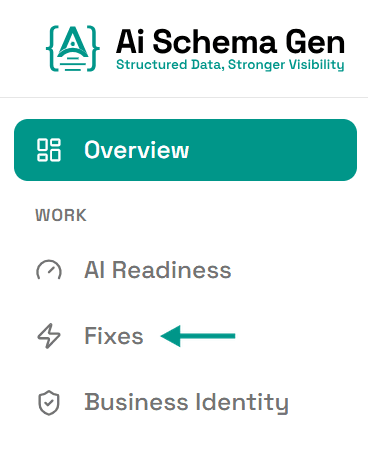
Open Fixes
In the menu on the left, click Fixes.
- 2
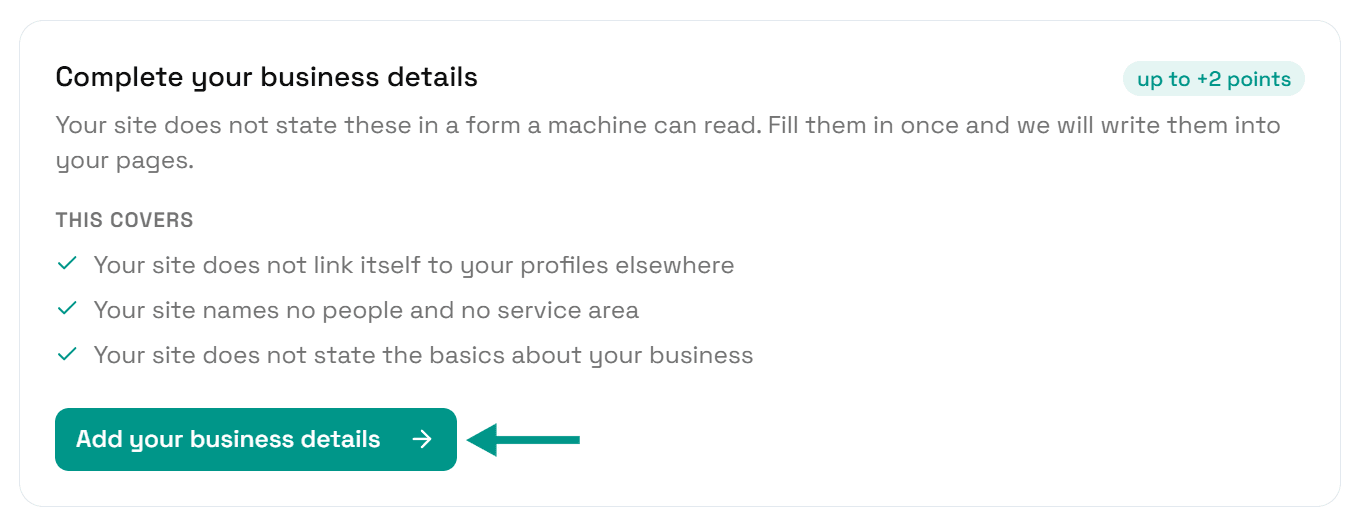
Click Add your business details
Find Complete your business details and click Add your business details.
- 3
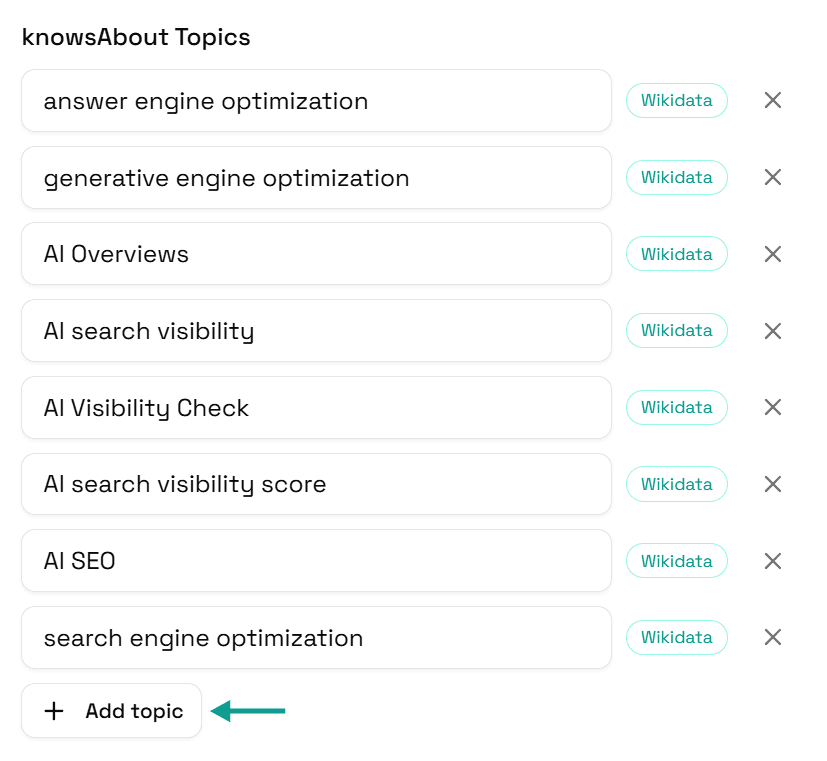
Click Add topic
Scroll to knowsAbout Topics and click Add topic.
- 4
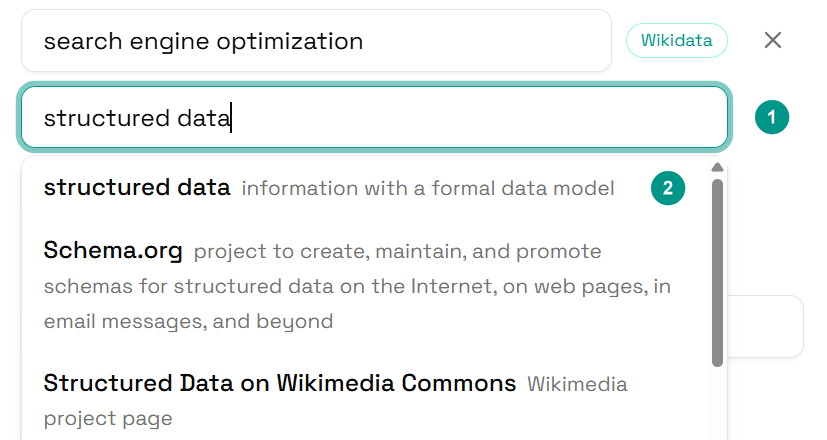
Type a topic and pick the match
Type a subject in the new box (1), then pick the matching entry from the list (2).
Add at least four topics. Our score counts up to four.
Example
A plumber: Plumbing, Central heating, Boilers, Bathroom renovation An accountant: Accounting, Tax returns, Payroll, Bookkeeping A software company: Customer relationship management, Email marketing, Marketing automation, Data privacy
- 5
Pick topics people actually ask about
Use the plain names of subjects, the words a customer would type. Leave out your own brand and product names, and vague words like quality or solutions.
- 6
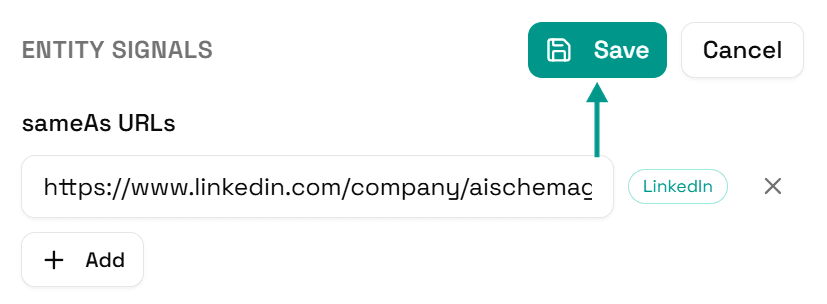
Click Save
Scroll back up and click Save.
- 7
Your pages update
You will see Saved. Your live pages are being updated now.
On a copy-and-paste site, go to Sites and click Get the new code instead.

- 8
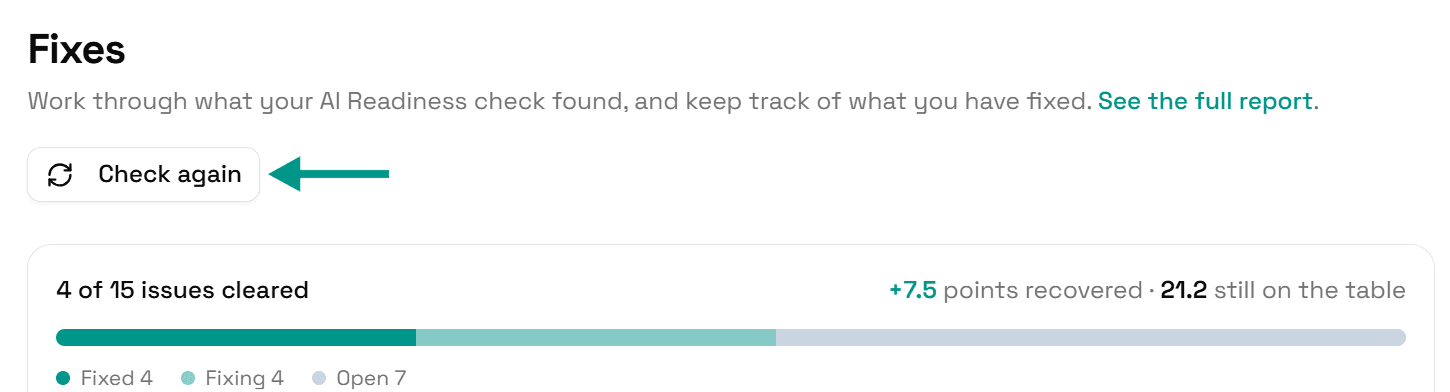
Check again
Go back to Fixes and click Check again. When your topics are on your pages, this problem moves to Resolved.
On WordPress
Topics you add in Business Identity sync to the AI Schema Gen plugin when someone next opens your WordPress admin, or within 6 hours. If saving says the plugin has not picked them up yet, open your WordPress admin once, come back, and click Try again.
Check it worked
Run the free AI readiness check again once your change is live. This problem should be gone from the list.
FAQ
See what else your site needs
The free check lists every problem on your site in order of how much it costs you.
Check your site free