
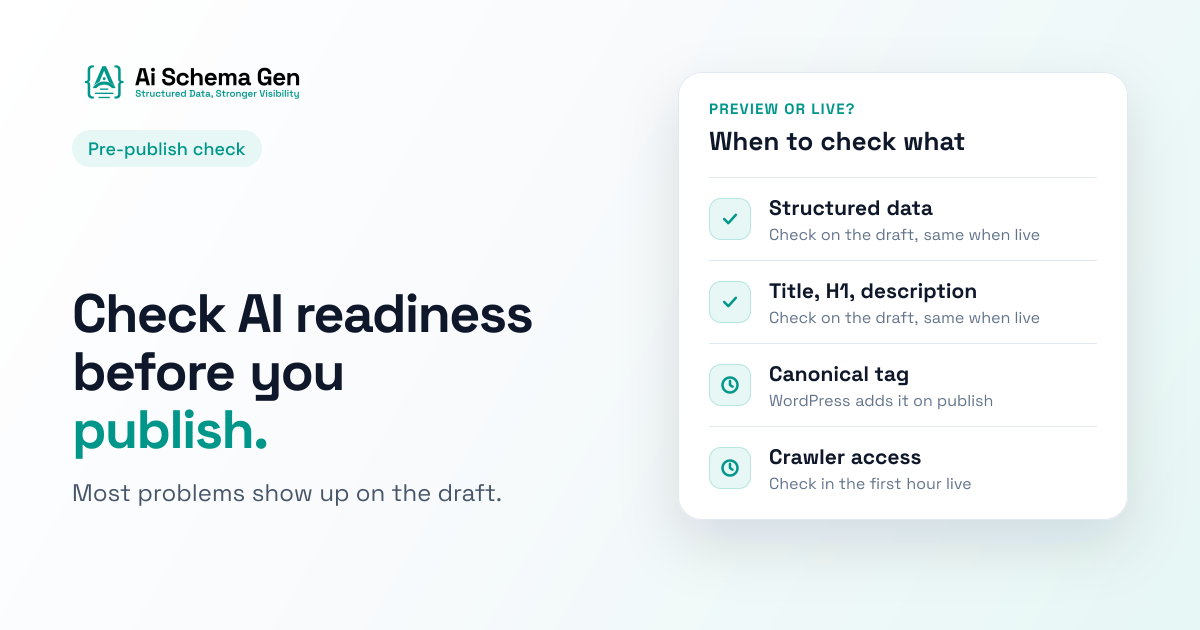
Most AI readiness checks happen too late. Someone publishes a page, a tool flags a missing description or a broken bit of structured data a week later, and by then the page has already been read by search engines and AI crawlers in its unfinished state. Fixing it means editing, republishing and waiting for the crawlers to come back.
You can catch most of those problems while the page is still a draft. Not all of them, though, and that is the part most guides skip. A preview page is not the same thing as a live page. Some checks give you a real answer on a draft. Some give you a warning that is completely expected on a preview and means nothing. And a few can only be answered once the page is public.
This guide splits the job along that line. You will learn what a pre-publish check actually looks at, how it differs from the "content score" in writing tools, which preview warnings to ignore, which ones to fix before you hit publish, and the short check to run in the first hour after the page goes live.
Content scores and readiness checks measure different things
If you searched for a tool that gives AI-generated drafts a "readiness score", you have probably already met content scoring tools. They are useful, but they answer a different question.
A content score judges the words. Surfer, one of the best known, describes its Content Score as two parts: an SEO Score (keyword use, topic coverage and structure compared with the pages already ranking for your query) and an AI Search Score (whether you cover the facts that tend to appear in AI answers, and how early you answer the main question). Both are judgements about your text. The same help page says nothing about structured data, canonical tags or anything else in the page's code.
An AI readiness check looks at the page as a machine receives it. Not "is this well written?" but:
- Can a crawler reach and keep this page? Is it blocked from indexing, does it name the right official address, does the site let AI crawlers in?
- Can a machine read it cleanly? Is there a title, a description, one main heading, a language, headings in a sensible order, text for images?
- Can a machine tell what it is and who is behind it? Is there structured data, does it say what the page is and which business or person published it, and do the pieces connect?
A beautifully written draft with a 95 content score can still fail all three. The words might be perfect while the page has no description, two main headings, no structured data and a theme that hides half the text from anything that doesn't run JavaScript. The two checks are partners, not rivals. Use a content tool for the writing and a readiness check for the page.
What a draft can honestly tell you
Here is the useful surprise: most of what makes a single page readable and understandable to AI is already there in the draft preview. The preview is built by the same theme, the same templates and the same plugins as the live page. Whatever they put into the page's code on a preview, they will put there when it is live.
That means a preview can give you a real answer on:
- The title and meta description. Present or missing, and whether they say what the page is about.
- One main heading. A page should have exactly one H1. Themes and page builders often add a second one (a site name styled as a heading, or the post title repeated in a banner), and you will see it on the preview just as clearly as on the live page.
- Heading order. Whether the headings run in order or skip levels, for example jumping from a main heading straight to a fourth-level one.
- Language. Whether the page declares which language it is in.
- Sharing tags. Whether the title, description and image that sharing previews use are filled in. These are the Open Graph tags; we compare them with structured data in Open Graph vs JSON-LD.
- Image text. How many images have alternative text and how many don't.
- Text versus clutter. Whether the page has real content or is mostly menus, sidebars and footer.
- Structured data. Whether there is any, what type it declares (an article, a product, a service), whether it is valid, and whether it names the business or person behind the page.
- Connections inside the structured data. Whether the pieces point at each other properly, for example an article that names its publisher and an author that links to a real person entry, or whether a reference points at something that doesn't exist.
That is most of the work. In our own scoring, the "can a machine tell what it is" part carries the most weight, and every input to it can be judged on a preview.
What a draft can't tell you yet
A few questions only have an answer once the page is public. Running them on a draft either gives no answer or a misleading one.
- What a crawler actually gets. AI crawlers fetch a page from outside, usually without running JavaScript. If your theme builds the text or the structured data with JavaScript, the live page may look fine in a browser and nearly empty to a crawler. That comparison needs a public address to fetch. Behind a login or on your own computer, there is nothing for an outside fetch to reach. We cover the problem itself in our guide to crawler access.
- The server's own instructions. A page can't see the headers the server sends with it, including a "don't index this" instruction sent that way. Only a fetch from outside can.
- The final address. Until a page is published, its permanent address may not exist yet.
- The live site's rules for bots. If your preview lives on a test domain, the robots.txt rules there are the test domain's, not your real site's.
None of these are reasons to skip the pre-publish check. They are reasons to add a short second check after publishing, which we come to below.
The preview traps: warnings that mean nothing on a draft
This is where pre-publish checks confuse people. Run a checker on a preview and you may see warnings that would be serious on a live page but are completely normal on a draft. Here are the common ones, and how to tell a false alarm from a real problem.
"No canonical tag" on a WordPress draft
A canonical tag is a line in the page's code that names its one official address. Without it, search engines and AI tools have to guess which version of a page is the real one.
On a WordPress draft preview, it is normal for this to be missing. WordPress core only prints a canonical tag for published posts: the function that works out the address returns nothing when the post's status is anything other than published. So a draft preview simply has none, and the tag appears once you publish.
Ignore it on the preview. Check it after publishing. If an SEO plugin is installed, it may print its own canonical even on previews, which is fine as long as it points at the post's real address and not at a preview link with a ?p=123 or preview=true on the end.
"This page blocks indexing" on a staging site
WordPress does not add a "don't index this" tag to ordinary post previews. We checked the source: the core robots rules add it for search results pages, embeds, comment reply links and sites marked as not public, and nothing for previews (see the code).
The "sites marked as not public" part is what catches people. On a staging copy of a site, someone usually ticks Settings > Reading > Discourage search engines from indexing this site. That puts a "don't index" tag on every page of the staging site, including the one you are checking. The warning is real for that staging site and irrelevant to your live one.
Ignore it on staging, but only if you know staging has that box ticked. If you see this warning on a preview of your live site, that is not a false alarm. Something (a plugin setting, a page-level option, a theme) is telling search engines and AI crawlers to drop the page, and it will still be doing so after you publish. Find it before you hit the button.
"AI crawlers are blocked" on a Webflow staging address
Webflow gives every site a free webflow.io address for testing. In its own help article, Webflow explains that turning Staging indexing off (Site settings > SEO > Indexing) publishes a separate robots.txt on that webflow.io address telling search engines to ignore it (Webflow's help page). A checker that reads robots.txt for the address you are on will see every crawler turned away.
That is correct for the staging address and says nothing about your real domain. Ignore it on webflow.io and check the real domain after publishing.
On the real domain, though, look at the same settings screen before you rely on that. Webflow also has traffic control switches for search engine crawlers and AI bots there. Both are on by default, but if someone switched off the AI bots group, every page you publish is closed to GPTBot, ClaudeBot, PerplexityBot and others, no matter how ready the page itself is.
"Not reachable" or "couldn't fetch this page"
If your preview is behind a login, on a password-protected staging site or on your own computer, no outside tool can fetch it. A good checker reports that as "couldn't reach it" rather than as a failure, because it never saw the page at all. Either way, it is not a problem with the page. It just means the "what does a crawler get" question waits until the page is public.
A quick way to sort them
| Warning on the preview | Normal on a draft? | What to do |
|---|---|---|
| No canonical tag (WordPress, no SEO plugin) | Yes | Check again after publishing |
| Canonical points at a preview or staging address | No | Fix the setting before publishing |
| Blocks indexing, on a staging site with "Discourage search engines" ticked | Yes | Ignore, staging only |
| Blocks indexing, on a preview of the live site | No | Find the source and fix it now |
| AI crawlers blocked, on webflow.io with Staging indexing off | Yes | Check the real domain's settings |
| Couldn't reach the page from outside | Yes | Run the outside check after publishing |
| Missing title, description, H1, language, sharing tags | No | Fix now, the live page will be the same |
| Structured data missing, invalid or not connected | No | Fix now, the live page will be the same |
The rule underneath the table: anything the theme, template or plugins add to the page is the same on the preview as on the live page, so fix it now. Anything that depends on the address, the server or the site-wide crawler rules can differ, so check it again once the page is live.
How to run the pre-publish check, step by step
You need a way to score the page you are looking at, not a whole site, and it has to work on a page that isn't public yet. Most online checkers can't do that because they fetch the address from their own servers. Our free Chrome extension was built to read the page in your own browser instead, so it works on a draft preview, a staging site behind a login, or a site running on your own computer.
- Open the draft preview in Chrome. In WordPress, use Preview in a new tab. In Webflow, open the staging webflow.io address. Make sure you are looking at the full page, not the editor.
- Click the extension. It reads the page right there in the browser: structured data, headings, title, description, language, sharing tags, image text and the canonical tag. The text of your draft stays on your computer. What goes to our server for the deeper check is the structured data and a summary of the page's structure (counts, not words).
- Read the three scores. You get an overall score out of 100 and three parts: whether the page can be reached (Discoverability), whether it can be read cleanly (Readability), and whether a machine can tell what it is (Understandability). The weakest part opens by itself.
- Sort each finding with the table above. Anything that is a preview trap, note it for the after-publish check. Everything else is real.
- Fix the real ones in the draft. A missing description or a second H1 is usually a two-minute fix in the editor or the theme settings. Missing or broken structured data is usually a plugin setting or a template problem, and fixing it once fixes every future page that uses the same template.
- Refresh and check again. The scores update straight away, so you can see whether the fix worked before anything is public.
On a WordPress preview with no SEO plugin, expect the missing canonical tag to cost a few points in two of the scores. Now you know why, and that it goes away on publishing.
What to fix first
If the check turns up a long list, work in this order:
- Anything that stops the page being kept. A real "don't index" on a preview of the live site, or a canonical tag that points somewhere else. These cancel out everything else.
- Structured data that says what the page is and who is behind it. No structured data at all, or structured data with no business or person named, is the biggest single gap on most pages. If it names an author, make sure that author is a real person entry. If the page has dates, make sure the dates in the structured data match the ones on the page; we explain why in our guide to schema dates.
- Broken connections. A reference to something that isn't in the page, or a publisher that is described twice with different details.
- The basics. Title, description, one H1, language, sharing tags, heading order, image text. Each one is small. Together they are what makes the page easy to read.
The check to run in the first hour after publishing
Once the page is live, three of the questions the draft couldn't answer now have answers. This takes five minutes.
- Run the extension again on the live page. Now that the page is public, the outside comparison runs too: our server fetches the page the way a crawler would and compares what it got with what your browser showed. If the crawler got much less text, or fewer structured data blocks, the page depends on JavaScript for something important.
- Check the canonical tag. It should be there now, and it should point at the page's own final address, not the preview, not the staging domain, not the homepage.
- Check the site's crawler rules. The extension shows which AI crawlers your real site's robots.txt allows. If the preview was on a test domain, this is the first time you are seeing the real answer.
- Look at the page source once. In Chrome, right-click and choose View page source, then search for
application/ld+json. If your structured data is there in the source, crawlers that don't run JavaScript can see it. If it only shows up in the browser's live view and not in the source, it is being added by JavaScript after the page loads.
If something that was fine on the preview is broken on the live page, it is almost always caching, a plugin that behaves differently for logged-out visitors, or a deploy step that changed the page. Our guide to schema that disappears after deploys walks through those causes.
Making it a habit for every page
A one-off check catches one page. The real value comes from making it a step in how pages get published, especially if several people write for the site or you publish AI-assisted drafts in volume.
- Put it in the publishing checklist. "Preview, run the readiness check, fix anything that isn't a preview trap" fits between "proofread" and "schedule". It adds two or three minutes per page.
- Fix templates, not pages. If the same problem shows up on every draft (no structured data, two H1s, no language), it is coming from the theme or a plugin. Fix it once at the source and every future page is clean.
- Agree what the preview traps are for your setup. Every site has its own: a staging domain, a password-protected preview, an SEO plugin that does or doesn't print canonical tags on drafts. Write down which warnings are expected on your previews, so nobody on the team wastes time chasing them.
- Keep the after-publish check. The first-hour check is where JavaScript problems and caching surprises show up. Skipping it means finding them weeks later.
- Re-check the whole site now and then. A page check looks at one page. Problems that belong to the whole site (no sitemap, no About page, AI crawlers blocked site-wide) only show up in a full site check, which you can run for free with our AI readiness checker.
Common Mistakes
- Treating a content score as a readiness score. A high writing score says nothing about whether the page's code tells machines what the page is. Use both.
- Chasing a warning that is normal on a preview. A missing canonical tag on a WordPress draft is not a bug. Fixing it by hand on every draft wastes time and can leave the wrong address in place after publishing.
- Ignoring a "don't index" warning because it's "only a preview". WordPress doesn't add one to previews. If you see it on a preview of your live site, it will be on the live page too.
- Checking the editor instead of the preview. The editor screen is not the page. Open the real preview in its own tab.
- Using a checker that can't see the preview. Tools that fetch the address from their own server will fail on drafts, logins and staging, then report "couldn't reach the page" as if that were the page's fault.
- Fixing the page instead of the template. If a problem repeats on every draft, the fix belongs in the theme or plugin settings.
- Skipping the check after publishing. JavaScript and caching problems only exist on the live page.
FAQ
What tools give a readiness score for AI-generated drafts?
Two kinds of tools score drafts, and they answer different questions. Content tools such as Surfer score the writing: keywords, topics covered and how early the main question is answered. AI readiness tools score the page itself: whether it can be reached, read and understood by machines. To score a draft page before it is public you need a readiness tool that works on a preview, such as a browser extension that reads the page where it is open, rather than one that fetches the address from outside.
How do I score a page for AI readiness before I publish it?
Open the draft preview in your browser, run a page-level readiness check on it, fix everything except the known preview traps (a missing canonical tag on a WordPress draft, crawler blocks on a staging domain, "couldn't reach this page" behind a login), then run the same check again in the first hour after publishing.
Does WordPress add noindex to post previews?
No. WordPress core adds a "don't index" tag to search results pages, embeds, comment reply links and to every page of a site where "Discourage search engines from indexing this site" is ticked. It doesn't add one to ordinary post previews. If you see one on a preview of your live site, a plugin, theme or page setting is adding it, and it will still be there after publishing.
Why is my canonical tag missing on a preview?
Because WordPress only prints the canonical tag for published posts. A draft has no official address yet, so the tag is left out. It should appear the moment you publish. If you use an SEO plugin that prints one on previews, make sure it points at the post's real address, not a preview link.
Can I check a page that's behind a login or on my own computer?
Yes, if the checker reads the page in your browser. Our Chrome extension does that, so it works on staging sites, logged-in previews and sites running on your own computer. What it can't do there is fetch the page from outside to compare it with what your browser shows, because no outside server can reach it. That part runs once the page is public.
Is my draft text sent anywhere when I check it?
With our extension, the text of the page stays in your browser. The structured data blocks and a summary of the page's structure (counts such as how many headings and images, not the words) go to our server so it can check the structured data and how it connects.
If the preview scores well, do I still need to check after publishing?
Yes. Three things can only be checked on the live page: what a crawler that doesn't run JavaScript actually receives, whether the canonical tag points at the final address, and what your real site's robots.txt says about AI crawlers. It takes five minutes and catches the problems a preview can't show.
Check your next draft before it goes live
Install the free Chrome extension, open your next draft preview and click it. You will see in a few seconds which problems are real, which are preview traps, and what to fix before anyone else sees the page.
Is your website ready for AI?
Check now. Free readiness score in under a minute, no signup, no card.